RESTORE and Rollback Strategies
In this lecture, let's learn about the RESTORE command in Delta Lake, and the broader strategies available for recovering a table when something goes wrong.
Setup
Open (or create) a notebook — 07-restore-and-rollback — connect a cluster, and set your catalog/schema:
sql%sql USE CATALOG workspace; USE SCHEMA default;
Setting Up a Realistic Scenario
Before learning the mechanics of RESTORE, we need a concrete problem to solve. Let's rebuild a familiar employees table, with some genuine transaction history behind it:
sql%sql DROP TABLE IF EXISTS employees; CREATE OR REPLACE TABLE employees ( employee_id INT, name STRING, department STRING, salary DOUBLE, status STRING ) USING DELTA COMMENT 'Employee records'; INSERT INTO employees VALUES (1, 'Alice Nguyen', 'Engineering', 95000.00, 'active'), (2, 'Bob Patel', 'Engineering', 88000.00, 'active'), (3, 'Carol Santos', 'Engineering', 92000.00, 'active'), (4, 'David Kim', 'Engineering', 78000.00, 'active'), (5, 'Eva Müller', 'Marketing', 72000.00, 'active'), (6, 'Frank Osei', 'Marketing', 68000.00, 'active'), (7, 'Grace Lin', 'Marketing', 74000.00, 'active'), (8, 'Hiro Yamamoto', 'Marketing', 69000.00, 'active'); UPDATE employees SET salary = ROUND(salary * 1.10, 2) WHERE department = 'Engineering'; INSERT INTO employees VALUES (9, 'Ingrid Larsson', 'Engineering', 85000.00, 'active'); UPDATE employees SET status = 'terminated' WHERE employee_id = 6; DESCRIBE HISTORY employees;
Think of this as a table that's been in production for a while — real users, real pipelines, a handful of versions built up naturally (including an automatic OPTIMIZE version along the way, just like we saw in the previous lecture).
Incident 1: A Bad Update
Now, let's simulate something going wrong — a pipeline bug, or a careless manual query:
sql%sql UPDATE employees SET salary = 999999.99; SELECT employee_id, name, department, salary FROM employees ORDER BY employee_id;
Notice: no WHERE clause. Every single row's salary gets overwritten to the same nonsensical value. And critically — no error, no warning, nothing. This is a completely valid SQL statement; it just does something disastrous. In real life, someone typically discovers this later, when the data simply "looks wrong."
Incident 2: An Accidental Delete
Let's make it worse — a second incident, on top of the first:
sql%sql DELETE FROM employees; SELECT employee_id, name, department, salary FROM employees ORDER BY employee_id;
Again, no WHERE clause. The table is now completely empty. Querying it returns nothing.
Investigating: What Actually Happened?
This is where Delta Lake's transaction history becomes essential.
sql%sql DESCRIBE HISTORY employees;
Looking at the history, we can identify exactly what happened: an UPDATE at one version (the bad salary overwrite), followed by a DELETE at the next version (the accidental wipe). We can even query those specific versions to confirm:
sqlSELECT * FROM employees VERSION AS OF 7
Checking this confirms version 7 is already corrupted — it's the result of the bad update. So the most recent genuinely valid state is version 6, the point right before the incidents began.
The RESTORE Command
sql%sql --RESTORE TABLE employees TO TIMESTAMP AS OF '<V4-TIMESTAMP>'; RESTORE TABLE employees TO VERSION AS OF 6;
That's it. You can restore either by version number (VERSION AS OF) or by timestamp (TIMESTAMP AS OF) — any timestamp between the target version's commit and the next one will work.
Verifying the Restore
sql%sql SELECT * FROM employees ORDER BY employee_id;
The data is back — real salaries, all 9 expected records, no trace of the corruption.
What Actually Happened Behind the Scenes
sql%sql DESCRIBE HISTORY employees;
Here's an important detail: RESTORE doesn't erase versions 7 and 8 from history. Instead, it's recorded as a brand-new version on top of everything else (e.g., version 9). This means you can still query version 7 or 8 later — say, to prove to someone exactly what went wrong and when. The corrupted states remain fully inspectable; they're just no longer the current state.
When RESTORE Isn't Enough: Selective Rollback
RESTORE is powerful, but it has one significant limitation: it rolls back the entire table. What if your table has millions of rows, and only a small, identifiable subset is actually corrupted — say, just one department, or just one store's transactions? Restoring the whole table would be unnecessarily heavy-handed, and would also undo any legitimate changes made to the rest of the table in the meantime.
For this, there's a different approach: time travel + MERGE.
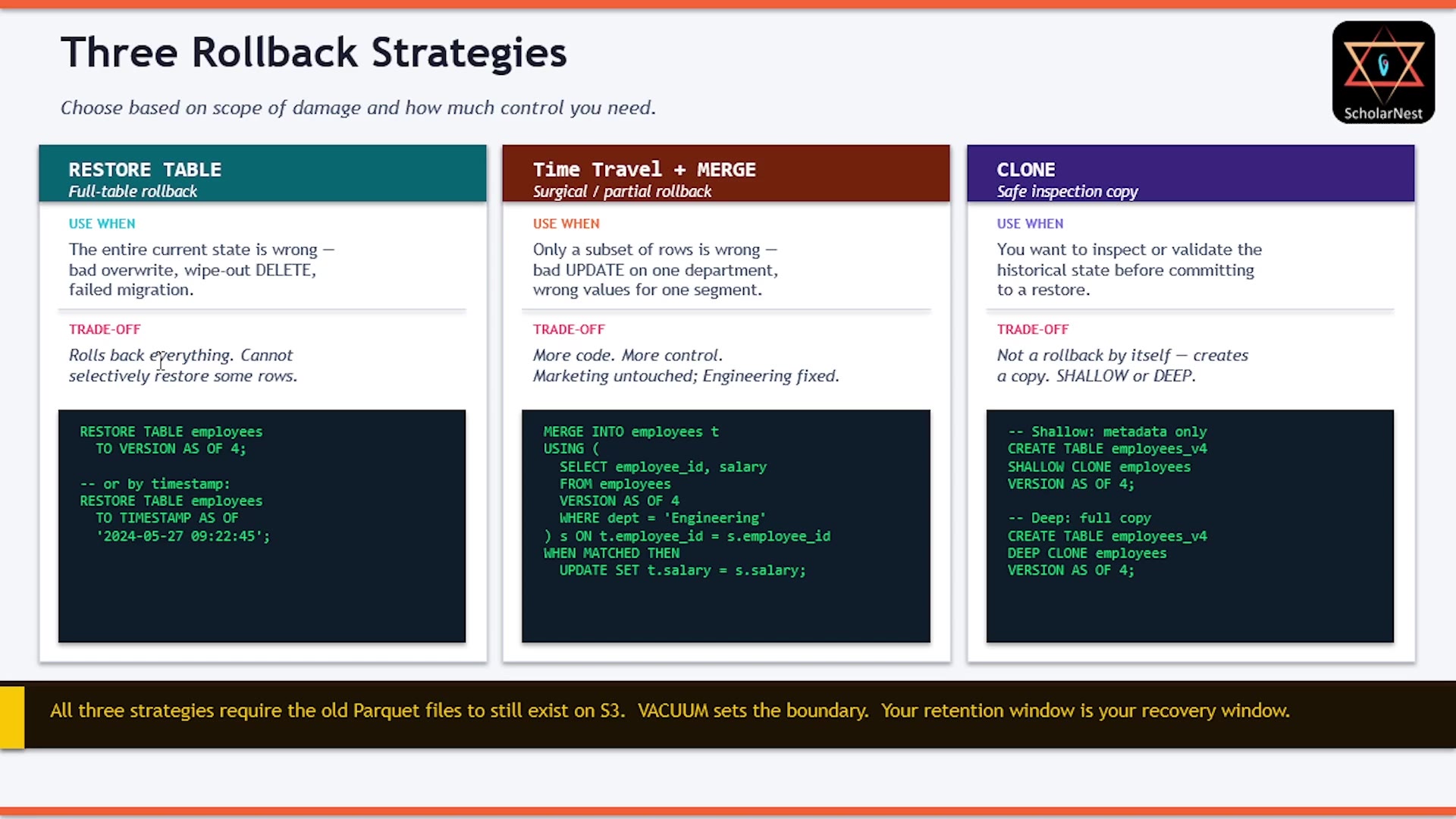 Three rollback strategies
The idea: identify a past version where the affected records were still correct, select just those records, and MERGE them back into the current table — leaving everything else untouched.
A Note on CLONE
Before running a risky restore or selective rollback in production, it's wise to test it first on a copy of the table, rather than experimenting directly on production data. Delta Lake's CLONE command supports this:
- Shallow clone — clones only the metadata; the actual data files are shared with the original table. Fast, since no data is physically copied.
- Deep clone — clones both metadata and data, producing a fully independent copy.
sqlCREATE TABLE employees_v4 SHALLOW CLONE employees VERSION AS OF 4;
You can experiment freely on the clone, confirm your fix logic is correct, and only then apply it to the real table.
Hands-On: Selective (Surgical) Rollback
Let's simulate a more targeted incident — this time with a WHERE clause, but with logically wrong data:
sql%sql UPDATE employees SET salary = 1.00 WHERE department = 'Engineering';
This is more insidious than incidents 1 and 2 — it's syntactically correct, scoped, but still wrong. Only the Engineering department's salaries are now corrupted (set to $1.00).
Investigating Before Fixing
Check the history again to identify a known-good version for the affected records. In this case, version 9 (right after our earlier RESTORE) is confirmed correct.
Partial Recovery With MERGE
sql%sql MERGE INTO employees AS target USING ( SELECT employee_id, salary FROM employees VERSION AS OF 9 WHERE department = 'Engineering' ) AS source ON target.employee_id = source.employee_id WHEN MATCHED THEN UPDATE SET target.salary = source.salary;
Let's break down what this does:
- The source is a time-travel query: pull
employee_idandsalaryfrom version 9, filtered to just the Engineering department — exactly the records and column that got corrupted. - The
MERGEmatches these source rows against the current table onemployee_id, and updates only thesalarycolumn for matching rows.
(We'll cover MERGE syntax and mechanics in full detail in an upcoming lecture — for now, the key idea is simply: pull correct historical values for the affected subset, and merge them back in.)
Verifying the Partial Recovery
sql%sql SELECT employee_id, name, department, salary, status FROM employees ORDER BY department, employee_id;
Engineering salaries are restored to their correct values — and critically, Marketing records were never touched. This is the key advantage over a full RESTORE: precision. Only the affected rows and the affected column were fixed; everything else in the table remained exactly as it was.
Summary: Three Rollback Strategies
| Strategy | Use When | Trade-off |
|---|---|---|
RESTORE TABLE | The entire current state is wrong — bad overwrite, wipe-out DELETE, failed migration | Rolls back everything. Cannot selectively restore some rows. |
Time Travel + MERGE | Only a subset of rows is wrong — a bad update on one department, wrong values for one segment | More code, more control — but you fix exactly what's broken and leave the rest alone |
CLONE | You want to inspect or validate a historical state before committing to a restore | Not a rollback by itself — creates a copy (shallow = metadata only, deep = full copy) for safe experimentation |
One universal constraint applies to all three strategies: they all require the old Parquet files to still physically exist in storage. As covered in the previous lecture, VACUUM permanently removes old files beyond your retention window — so your retention window is effectively your recovery window. If you've vacuumed away the files for a given version, none of these rollback strategies can reach back to it.
See you again. Keep learning, and keep growing!