Reprocessing the Past — Choosing Your Approach, and Resetting Offsets from the CLI
The Requirement
Here is a problem every real streaming system meets sooner or later.
The recommendation model had a bug. It was not caught for six hours. The fix is deployed and works. But for six hours, the recommendations were wrong.
The events are still safely in Kafka. So the question is:
Output / NoteHow do we make the system process those six hours again, correctly?
That is the whole subject of this lecture and the next one. Kafka gives you more than one way to do it. Today, we learn how to choose. Then we build the simpler solution hands-on. In the next lecture, we build the second one.
Two Questions Before You Touch Anything
Before you run any command, ask yourself two questions.
Question 1: Whose code should redo the work?
- The real production consumer, the same code that did it wrongly the first time?
- Or a separate tool, written just for this?
Question 2: Where should the corrected result go?
- Into production's own destination (its real database, feature store or dashboard)?
- Or somewhere else (a separate table, a file, another topic)?
These two questions decide everything. Let's meet the two approaches.
Approach A: Reset the Group's Offsets
Remember what an offset is. It is the group's saved position: "the next message I should read." What if we move that saved position back in time?
Then the next time the group starts, it reads from the new, older position. The same production consumer, with the same code, processes those messages again, and writes to its own destination, exactly as it would have done the first time.
- The group has to be stopped while you do this.
- You use a command-line tool. No code is needed.
- Production's real output gets corrected.
Think of it as: "pretend it never went wrong the first time."
Approach B: Read Alongside With a Separate Tool
Now imagine something different. You do not touch the production group at all. Instead, you start a separate reader, with its own group name, and you point it at the time window you care about.
- Production keeps running. There is no downtime.
- The tool has its own logic, and sends its output wherever you decide.
- Production's own state, and production's own output, are never touched.
Think of it as: "take a second, independent look at that window."
There is a very simple form of this too. A brand-new consumer group with auto.offset.reset set to earliest reads the whole topic from the start, without changing anything else. The tool we build in the next lecture adds precise control: you can start at an exact point in time.
Which One Should You Use?
There is one question that settles it:
Output / NoteDo you want your live production consumer to redo this work through its own code, or do you want something separate to look at this window without touching production at all?
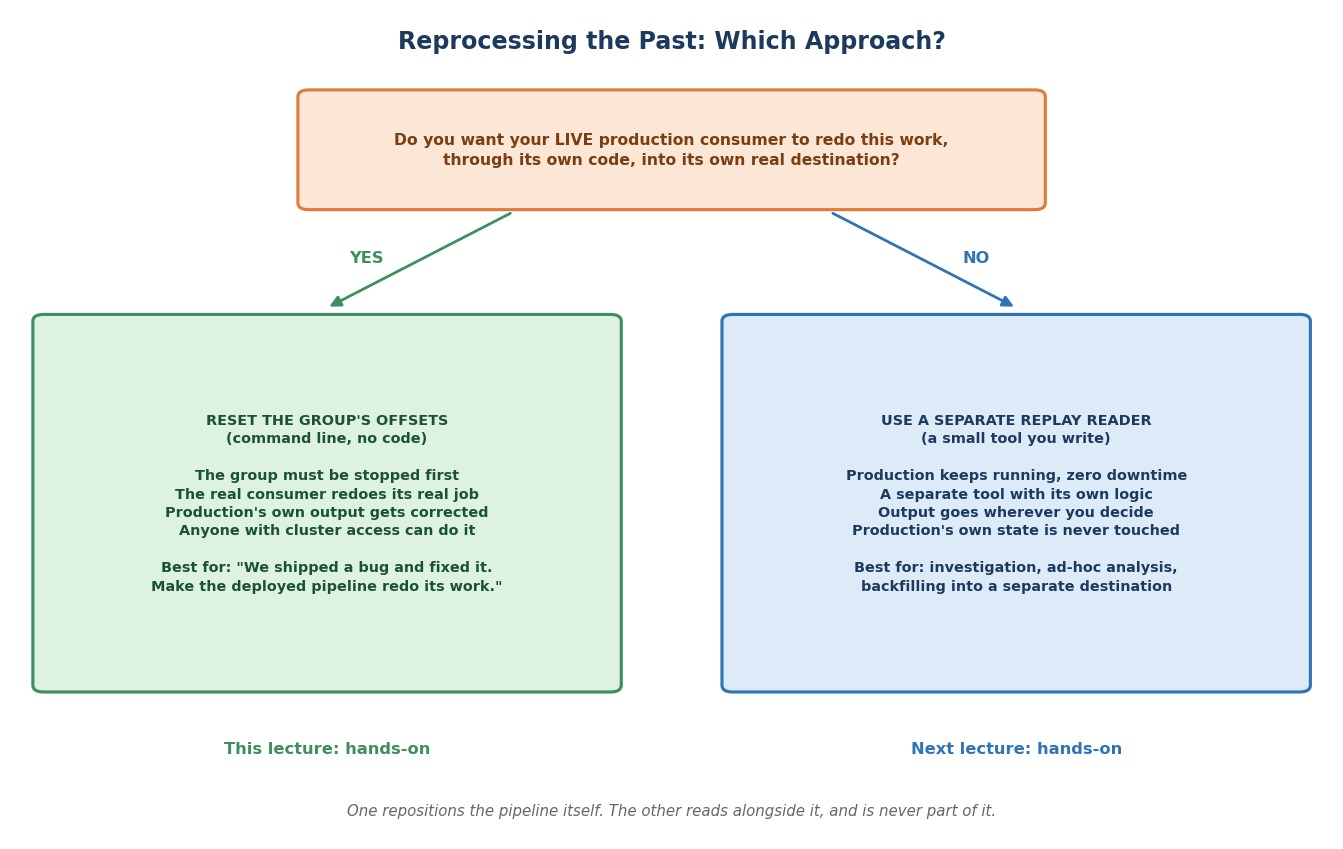 Reprocessing the past: which approach?
- First answer means reset the group (Approach A).
- Second answer means a separate replay reader (Approach B).
Here is the full comparison:
| Approach A: Reset the group (CLI) | Approach B: Separate replay tool | |
|---|---|---|
| Does production have to stop? | Yes. The group must be fully inactive first | No. It runs independently, with zero downtime |
| Whose code reprocesses the data? | The real production consumer, unchanged | A separate tool, with its own logic |
| Where does the output go? | Production's normal destination, as if it had been correct the first time | Wherever you write it, often somewhere else |
| Who can do it? | Anyone with cluster access. No code | A developer, running a tool |
| Best fit | "We shipped a bug and fixed it. Make the deployed pipeline redo its own recent work." | Investigation, ad-hoc analysis, backfilling into a separate destination |
Here is the difference stated plainly:
- Resetting makes the same consumer redo the same job it already did, later and correctly. It repairs production's real output.
- A replay tool is a separate reader. It is useful exactly because it does not touch production's state. For the same reason, it cannot repair production's output.
If you reset the group, the real database, the real feature store, the real dashboard gets corrected. If you run a replay tool, you get a second, independent view of that data. Production's own output stays untouched, unless you deliberately build the tool to write there.
That is also why resetting needs the group to be stopped, and a replay tool does not. They are not two ways of doing the same thing with different friction. One repositions the pipeline itself. The other reads beside it.
Test Yourself
Which approach would you choose?
- The bug wrote wrong rows into the recommendations database. You need the real pipeline to fix those rows.
- An analyst wants to look at the last two hours of clicks to investigate a traffic spike, and production must not be disturbed.
- You want to fill a new analytics table with the last month of events, while the live pipeline keeps running.
- A bad deploy corrupted the last six hours of output, and a short pause of the pipeline is acceptable.
Answers: 1 is A. 2 is B. 3 is B. 4 is A.
Rules That Apply to Both Approaches
Whichever you choose, reprocessing has consequences you should know before you start.
Messages will be processed again. If your processing adds a row every time, then a second run creates duplicates. This is why we said, in the offset lecture, that processing should be safe to repeat. Reprocessing is exactly when that pays off.
Choose the window carefully. Too wide, and you reprocess (and pay for) more than you need. Too narrow, and you miss the bad part.
Bad messages are bad again. If your window contains the poison pills from before, they will fail again and be sent to the dead-letter topic a second time. That is expected. Reprocessing repeats everything, including the failures.
Approach A in Practice: The Offset Reset Tool
Let's build Approach A now, hands-on. It uses a tool you already know.
You have used kafka-consumer-groups.sh with --describe to look at a group's health. It has a second mode: --reset-offsets, which moves a group's saved position.
There is one hard rule, and Kafka enforces it:
Output / NoteThe group must be completely inactive.
If you try to reset a group that still has running members, you get exactly this:
Error: Assignments can only be reset if the group 'recommendation-service' is inactive, but the current state is Stable.
Why is this rule there?
Because resetting the offsets while consumers are actively reading and committing would mean two parties fighting over the same saved state, at the same time. So every member has to be stopped first.
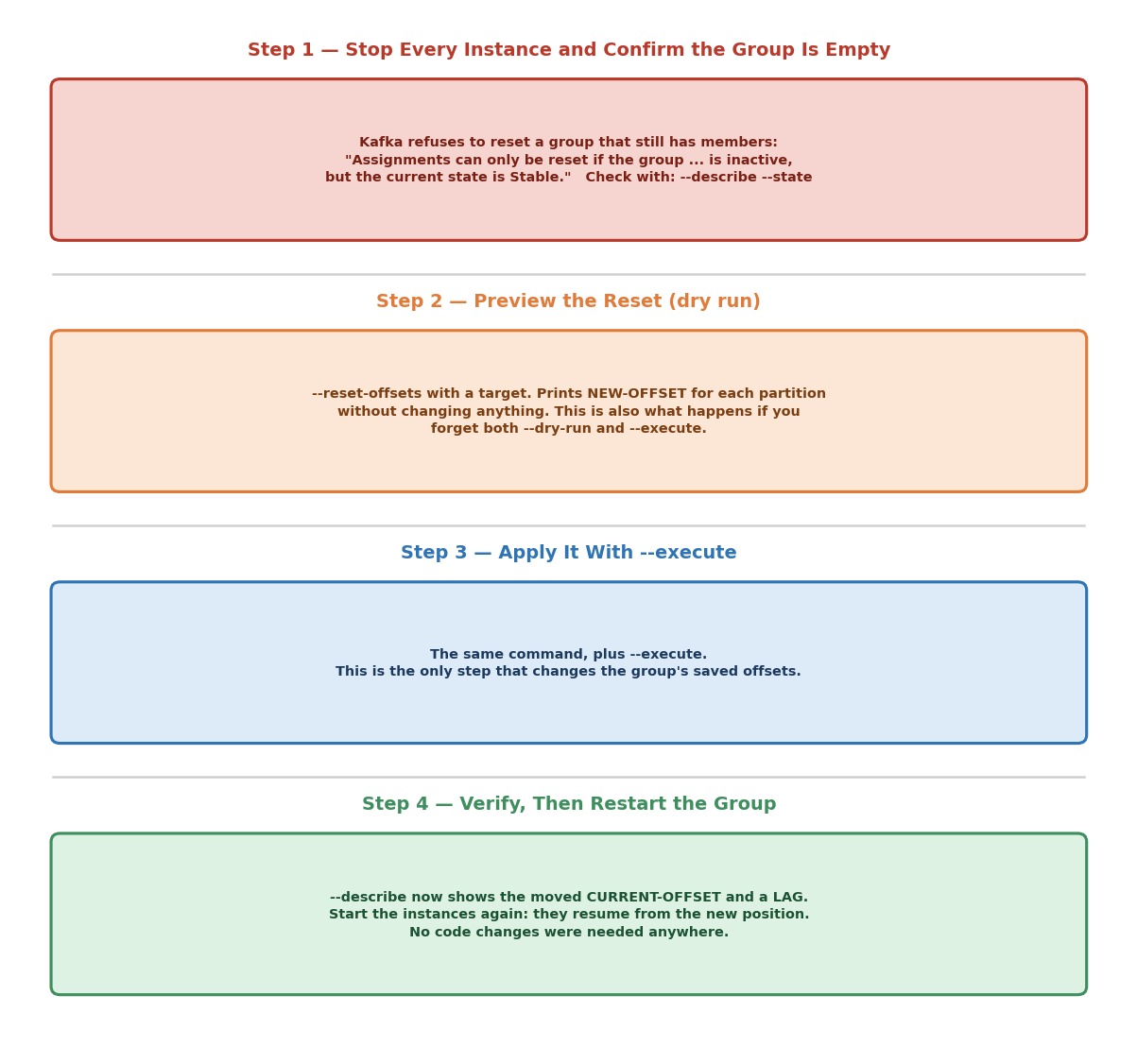 The group reset workflow
Choosing a Target Position
--reset-offsets needs to know where to move the position. You choose one target:
| Option | Moves the group to... | Use it when... |
|---|---|---|
--by-duration PT6H | The position from 6 hours ago, counted from now | "Redo the last N hours". The easiest one |
--to-datetime | A specific date and time | You know the exact moment the bug began |
--to-earliest | The start of the topic's retained history | You need everything |
--to-latest | The end of the topic | You want to skip the backlog |
--shift-by -100 | 100 messages back from the current position, per partition | A small, relative step back |
--to-offset | One specific offset | You know the exact offset |
--to-current | Where it is now (no change) | Combined with --export, to save a copy of the current position |
How do you write the duration?
In a standard format: PT6H means 6 hours, PT30M means 30 minutes, P1DT2H means 1 day and 2 hours.
How do you write a date and time?
Like this: 2026-09-26T09:30:00.000+05:30. Notice the +05:30 at the end. This matters.
Output / NoteTime zone warning: If you write a date and time without an offset, the tool reads it as UTC, not as your local time. India is UTC+05:30, so
10:00without an offset means 15:30 in India. Always write the offset yourself (+05:30, orZfor UTC). Or use--by-duration, which has no time zone problem at all.
What if the time is before the first message, or after the last one?
The tool cannot point to a message that does not exist. For a time before the first message, the position becomes the earliest offset. For a time after the last message, it becomes the latest offset, and the tool prints a warning for an empty partition.
Let's Do It
For this demo, we use the safe consumer from the offset lecture as our "production consumer". It prints every event, so we can clearly see it reprocess.
Step 1: Start Your Cluster
bashdocker compose start docker ps
Step 2: Create Some Recent Events
Run one of your clickstream producer scripts from the producer chapter, so there are events from the last few minutes.
Step 3: Start the "Production" Consumer
Open a terminal and start the safe consumer. Leave it running:
bashpython 5.4_safe_consumer_dlq.py
Wait until it has printed the events and gone quiet. It is now caught up.
Step 4: Try to Reset While It Is Running
Open a broker terminal:
bashdocker exec -it kafka-1 bash export PATH=$PATH:/opt/kafka/bin
Now try the reset while the consumer is still running:
bashkafka-consumer-groups.sh \ --bootstrap-server kafka-1:29092 \ --group recommendation-service \ --topic clickstream-events \ --reset-offsets \ --by-duration PT30M \ --execute
You should get the error we saw earlier: "Assignments can only be reset if the group 'recommendation-service' is inactive, but the current state is Stable." Kafka protected you. Nothing was changed.
Step 5: Stop the Group and Confirm It Is Empty
Press Ctrl+C on the consumer. If you had more instances running, stop every one of them.
Now check the group:
bashkafka-consumer-groups.sh --describe --group recommendation-service --state --bootstrap-server kafka-1:29092
Look at the STATE column. Wait until it says Empty. If it does not yet, wait a few seconds and run the command again. (After a clean Ctrl+C, this is quick. If a consumer crashed instead, Kafka waits for its session timeout, 45 seconds by default.)
Step 6: Look at the Current Position
bashkafka-consumer-groups.sh --describe --group recommendation-service --bootstrap-server kafka-1:29092
Note the CURRENT-OFFSET and LAG columns. The lag should be 0, because the group had read everything. Remember these numbers.
Step 7: Preview the Reset With --dry-run
Let's move the group back by 30 minutes:
bashkafka-consumer-groups.sh \ --bootstrap-server kafka-1:29092 \ --group recommendation-service \ --topic clickstream-events \ --reset-offsets \ --by-duration PT30M \ --dry-run
This prints a table with GROUP, TOPIC, PARTITION and NEW-OFFSET. It shows exactly what would change, per partition, without touching anything. Always look here first. It is your one chance to catch a mistake before it becomes real.
Which partitions look unchanged?
A partition with no events in your 30-minute window keeps pointing at the end, because there is nothing to go back to.
Output / NoteA useful fact: If you forget both
--dry-runand--execute, the tool does a dry run anyway and prints a warning that no action will be performed. Nothing changes until you add--execute.
Want to use an exact time instead? Use --to-datetime with the offset:
bashkafka-consumer-groups.sh \ --bootstrap-server kafka-1:29092 \ --group recommendation-service \ --topic clickstream-events \ --reset-offsets \ --to-datetime "2026-09-26T09:30:00.000+05:30" \ --dry-run
Replace the date and time with a moment from a few minutes ago, in your own time zone.
Step 8: Apply It With --execute
Once the dry run looks right, run the identical command, with --execute instead of --dry-run:
bashkafka-consumer-groups.sh \ --bootstrap-server kafka-1:29092 \ --group recommendation-service \ --topic clickstream-events \ --reset-offsets \ --by-duration PT30M \ --execute
This is the only step that really changes the group's saved offsets. Everything before it was a preview.
Step 9: Verify Before You Restart
bashkafka-consumer-groups.sh --describe --group recommendation-service --bootstrap-server kafka-1:29092
Compare with Step 6. The CURRENT-OFFSET values moved back, and the LAG is no longer 0. The lag is exactly the number of messages the group is about to process again. No consumer is running yet, but the group's position has already been moved.
Step 10: Restart the Group and Watch It Reprocess
bashpython 5.4_safe_consumer_dlq.py
The consumer prints the events of the last 30 minutes again, from its new position. It did not need a single code change. It is the same production consumer, doing its own job again.
If your window included the poison pills you injected in the offset lecture, you will also see them fail again and go to the dead-letter topic a second time. That is reprocessing being honest.
Run --describe once more. The lag returns to 0 as the group catches up.
Step 11: Stop Your Cluster
Press Ctrl+C on the consumer, then:
bashdocker compose stop
Common Mistakes at This Stage
Trying to reset a running group. Kafka refuses, as you saw. Stop every instance first, and check that the state is Empty.
Skipping the dry run. Always preview first. --execute is not undoable by itself.
Writing a date and time without an offset. It is read as UTC, so a time that looks right on your clock can be many hours off. Add the offset, or use --by-duration.
Forgetting that the whole topic moves. --topic clickstream-events resets every partition of that topic for the group. If you need only some partitions, name them, like --topic clickstream-events:0,1.
Ignoring duplicates. The reprocessed messages will hit your database a second time. Make sure your processing can handle that.
Checklist
- Understood the problem: correct processing must be redone for a past window
- Can explain the two questions: whose code redoes the work, and where the result goes
- Understood Approach A (reset the group) and Approach B (a separate replay reader)
- Can answer, without hesitating: does resetting fix production's real output, or does a replay tool?
- Know the shared rules: duplicates, window choice, and poison pills failing again
- Understood why Kafka refuses to reset an active group, and what the error says
- Stopped every instance and confirmed the state is
Empty - Used
--dry-runto preview a reset, and--executeto apply it - Know the target options, and the time zone rule for
--to-datetime - Confirmed the reset with
--describe, and watched the production consumer reprocess
You now have the first answer to "how do we reprocess the past": the fast, code-free way for a production incident. Next: the second answer. We build a small replay tool that reads a chosen time window on its own, and leaves production completely untouched.