Kafka Command Line Tools
We've talked about producers, brokers, and consumers. We've built a 3-broker cluster on our own machine. Today, we stop talking about Kafka and actually put our hands on it.
By the end of this lecture, you'll have created a real topic, sent real messages into it, and read them back out — using the exact same command-line tools that ship inside every Kafka installation, the same ones engineers reach for daily when they need to check something quickly without writing a full application.
Let's start with a quick recap of where we left off, then talk about the one piece we haven't really named yet — the topic itself — before we get our hands on the keyboard.
Quick Recap: Producer, Broker, Consumer
Remember the shape we landed on a couple of lectures ago. A producer is anything sending data in. A broker is a Kafka server, storing that data safely. A consumer is anything reading data out, independently, at its own pace. Multiple brokers work together as a cluster — exactly the three brokers, kafka-1, kafka-2, and kafka-3, you already have running on your own machine.
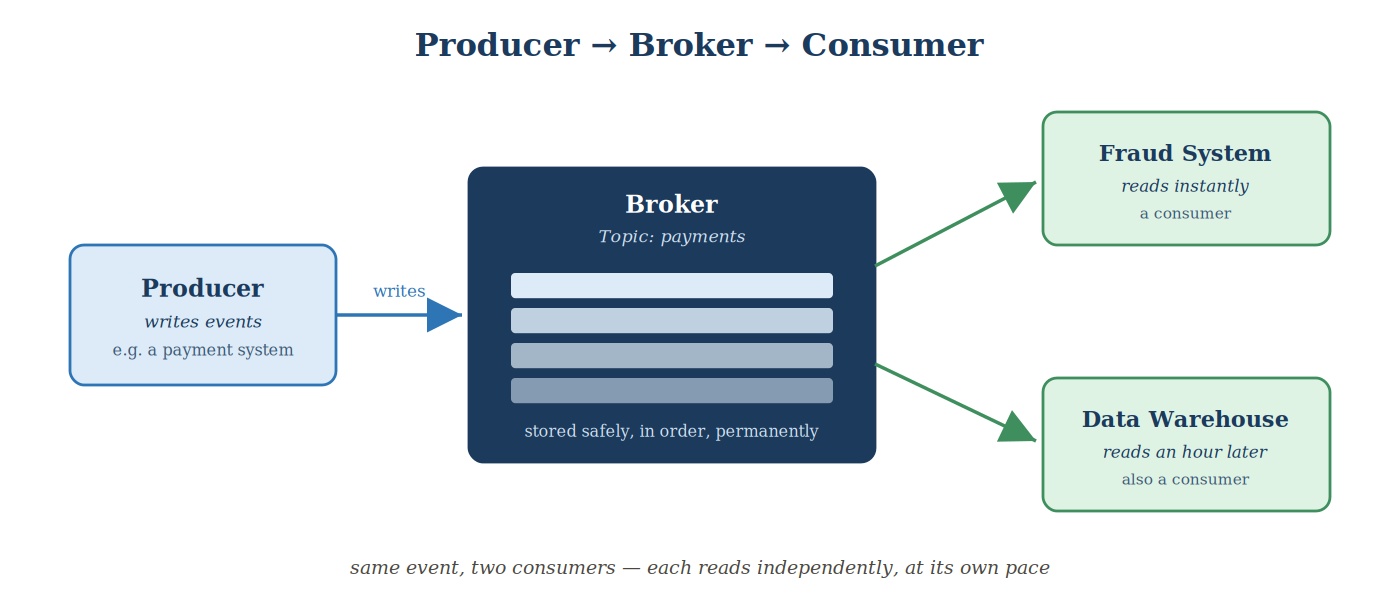 Producer, broker, consumer core flow
Producer writes → Broker stores → Consumer reads. That's the foundation. Today we finally get to do all three of those things ourselves.
What Is a Topic, Really?
There's one piece of that picture we've mentioned but never really named: where, exactly, does a broker store what a producer sends it?
Here's the problem a topic solves. Imagine a company sending two very different kinds of events into Kafka — every website click, and every payment. Now imagine the fraud detection system, which only cares about payments. If every event, of every kind, landed in one giant undivided pile, the fraud system would have to wade through every single click just to find the payments buried inside it. That's wasteful, and it doesn't scale.
A topic fixes this by giving events a named home. The payment system writes its events to a topic called payments. The website writes its events to a completely separate topic called clicks. The fraud detection system then only needs to subscribe to payments — it never even sees a click event, because it was never mixed in with them in the first place.
So a topic is simply a named category that a broker stores events under, and that producers and consumers agree on as the address for a particular kind of data. Today, we're going to create one ourselves, called test-topic, and use it to send and read our own messages.
There's more going on inside a topic than just its name — how it's actually split and copied across your three brokers — and we'll get into that properly in an upcoming lecture. For today, the name is all you need.
Introducing the Command-Line Toolkit
Every Kafka broker ships with a set of ready-to-use command-line tools. You don't install these separately — they're already sitting inside your kafka-1, kafka-2, and kafka-3 containers, at /opt/kafka/bin/. Today we'll use three of them:
kafka-topics.sh— create, list, describe, and delete topicskafka-console-producer.sh— type messages straight into a topic from your terminalkafka-console-consumer.sh— read messages straight out of a topic into your terminal
Nearly every command you'll run today follows the same basic shape:
<tool-name> --<action> --bootstrap-server <address> [more options specific to that action]
That --bootstrap-server piece shows up in almost everything you'll type. It's simply the address of a broker to connect to first — Kafka uses that first connection to learn about the rest of the cluster automatically, so you don't need to list all three brokers by hand every time.
One detail worth knowing before we start typing: we'll be working from inside the kafka-1 container, so we'll address our own cluster as kafka-1:29092 — not localhost:9092. Inside a container, localhost only ever means "this container." kafka-1:29092 is the network name Docker gave the broker, and it's the address that correctly reaches the whole cluster from inside any of the three containers.
With that, let's actually do this.
Hands-On: Creating, Writing To, and Reading From a Topic
Start your cluster. Open your terminal, move into your setup folder, and run:
bashdocker compose start
This is start, not up -d — your containers already exist from the last lecture, so we're just switching them back on.
Confirm all three brokers are up:
bashdocker ps
You should see kafka-1, kafka-2, and kafka-3, each Up.
Open a terminal inside kafka-1, where the CLI tools live:
bashdocker exec -it kafka-1 bash
Your prompt should change, showing you're now inside the container. Put the tools on your path, once, right after entering:
bashexport PATH=$PATH:/opt/kafka/bin
Every command from here runs inside this container terminal.
Create Your First Topic
Let's create a topic called test-topic:
bashkafka-topics.sh --create \ --topic test-topic \ --bootstrap-server kafka-1:29092 \ --partitions 3 \ --replication-factor 3
You'll notice two flags here, --partitions 3 and --replication-factor 3, that every topic needs some value for. We're going to leave those two exactly as they are for now and explain precisely what they mean in an upcoming lecture — today, just know that every topic requires them, and these values are sensible defaults for a 3-broker cluster like ours.
Confirm It Exists
bashkafka-topics.sh --list --bootstrap-server kafka-1:29092
You should see test-topic in the list — proof the broker created it and knows about it.
You can also ask for more detail on any topic with --describe:
bashkafka-topics.sh --describe \ --topic test-topic \ --bootstrap-server kafka-1:29092
This prints some detail about how test-topic is actually laid out across your cluster. We'll unpack exactly what you're looking at in an upcoming lecture — for now, it's enough to know this command exists any time you want to inspect a topic more closely.
Send Some Messages
bashkafka-console-producer.sh \ --topic test-topic \ --bootstrap-server kafka-1:29092
This opens a prompt where anything you type becomes a message sent straight into test-topic. Type these, one at a time, pressing Enter after each:
hello kafka
this is my first message
my environment is working
Press Ctrl+C to exit the producer.
Read the Messages Back
bashkafka-console-consumer.sh \ --topic test-topic \ --bootstrap-server kafka-1:29092 \ --from-beginning
You should see all three messages printed out, in order. --from-beginning tells the consumer to start reading from the very first message in the topic, rather than only waiting for new ones — which is exactly why we see all three, even though we typed them a moment earlier, in a completely separate command.
Press Ctrl+C to stop the consumer.
See Where the Data Actually Lives
One more thing worth seeing with your own eyes. Still inside kafka-1:
bashls /var/lib/kafka/data | grep test-topic
You should see a few folders, all starting with test-topic. That's your topic's data, physically sitting on disk inside this broker — not some abstract idea, an actual folder on an actual machine. Exactly what those folders represent, and why there's more than one, is part of what we'll dig into in that upcoming lecture too.
Type exit to leave the container.
Cleaning Up
bashdocker compose stop
This switches your cluster off, but keeps test-topic and everything in it exactly as it is. Next time you run docker compose start, your topic and its messages will still be there, waiting for you.
Quick Recap
- Producer writes → Broker stores → Consumer reads — the foundation, and today you did all three yourself.
- A topic is a named category events are stored under, so different kinds of data — and the different consumers who care about them — stay cleanly separated.
- Kafka ships with ready-to-use command-line tools, already inside every broker container at
/opt/kafka/bin/— no separate install needed. - Almost every command follows the same shape: a tool, an action, a
--bootstrap-serveraddress, and options specific to that action. kafka-topics.shcreates, lists, and describes topics.kafka-console-producer.shsends messages.kafka-console-consumer.shreads them back.- You created a real topic, sent messages into it, read them back out, and even peeked at where that data physically lives on disk.
- Everything you did today is still sitting in your cluster, ready to pick back up whenever you run
docker compose start.