Creating and Managing Delta Tables
In this lecture, let's learn three approaches for creating Delta tables in Databricks, and then understand the difference between managed and external Delta tables.
Setup
Create a new notebook in your Delta Lake folder — let's call it 02-Creating-and-Managing-Delta-Tables. Before creating any tables, set your catalog and schema:
sqluse catalog classic_workspace; use schema default;
(Use whatever catalog you have in your own environment — it typically matches your workspace name, with default as the schema.) Connect a serverless cluster and run this first.
Approach 1: CREATE TABLE with Explicit DDL
The simplest approach — define your columns explicitly:
sqlCREATE OR REPLACE TABLE products ( product_id INT COMMENT 'Unique product identifier', name STRING COMMENT 'Product name', category STRING COMMENT 'Product category', price DOUBLE COMMENT 'Unit price in USD', in_stock BOOLEAN COMMENT 'Whether the product is available' ) USING DELTA COMMENT 'Product catalogue — created with explicit DDL';
A couple of things worth noting:
CREATE OR REPLACE TABLE, rather than plainCREATE TABLE, means you can re-run this safely —CREATE TABLEwould throw an error if the table already exists, whileCREATE OR REPLACE TABLEsimply replaces it.USING DELTAexplicitly marks this as a Delta table.- Column and table
COMMENTs — genuinely useful, especially now, in a world where AI tools and data catalogs rely on these comments to understand your data.
A blank table isn't very useful, so let's load some data:
sqlINSERT INTO products VALUES (1, 'Wireless Headphones', 'Electronics', 79.99, true), (2, 'Standing Desk', 'Furniture', 349.00, true), (3, 'Mechanical Keyboard', 'Electronics', 129.50, false), (4, 'Monitor Stand', 'Furniture', 55.00, true), (5, 'USB-C Hub', 'Electronics', 44.99, true);
That's it — a Delta table created and loaded, using plain SQL DDL.
Approach 2: CTAS (Create Table As Select)
The second approach lets you create a table directly from the result of a query:
sqlCREATE OR REPLACE TABLE electronics USING DELTA COMMENT 'Electronics subset — created with CTAS' AS SELECT product_id, name, price FROM products WHERE category = 'Electronics';
Notice the difference from Approach 1: there's no explicit column list in parentheses. Instead, after AS, we write a SELECT statement — and the resulting table's schema (column names and types) is inferred directly from that query's result.
sqlselect * from electronics
This returns just the electronics products — the schema was picked up entirely from the SELECT.
You can confirm this with DESCRIBE:
sqldescribe electronics
This shows product_id as INT, name as STRING, price as DOUBLE — exactly matching the source table's types. Even the column comments are carried over from the source table automatically. CTAS is a great option when you want a derived table whose structure should simply follow from a query, without manually re-declaring the schema.
Approach 3: Using Spark (DataFrame API)
The third approach uses Spark code directly — build a DataFrame, then write it out as a table.
python%python from pyspark.sql.types import StructType, StructField, IntegerType, StringType, DoubleType schema = StructType([ StructField("order_id", IntegerType(), False), StructField("product_id", IntegerType(), False), StructField("customer", StringType(), False), StructField("quantity", IntegerType(), False), StructField("total", DoubleType(), False), ]) data = [ (101, 1, "Alice", 2, 159.98), (102, 2, "Bob", 1, 349.00), (103, 3, "Carol", 1, 129.50), (104, 5, "Alice", 3, 134.97), (105, 4, "David", 2, 110.00), ] df = spark.createDataFrame(data, schema) df.write \ .format("delta") \ .mode("overwrite") \ .saveAsTable("classic_workspace.default.new_orders")
A few key points:
format("delta")— In Databricks, Delta is actually the default format even if you omit this, but it's good practice to specify it explicitly.saveAsTable(...)— notice we give the fully qualified name (catalog.schema.table), rather than justnew_orders. In a SQL cell, we'd already set the catalog/schema context withUSE CATALOG/USE SCHEMA— but in a Python/Spark context, that context may not carry over reliably. To avoid accidentally creating the table somewhere unexpected, it's safest to always spell out the full path here.
Verify it worked, using plain SQL — since it's a real table now, regardless of how it was created:
sqlselect * from new_orders
Managed vs. External Delta Tables
Now for an important concept: Databricks supports two types of Delta tables — managed and external. The difference is about ownership — specifically, who owns the actual data files sitting in your storage bucket (e.g., S3).
Managed Tables
With a managed table, Databricks owns everything:
- The metadata entry in Unity Catalog.
- The data files in the storage bucket — Databricks chooses and manages the S3 path automatically. You never specify it.
Critically: dropping a managed table deletes both the metadata and the underlying data files. The data is genuinely gone (it may be marked for deletion and cleaned up after a retention period, but it's on its way out either way).
Every table we created above (products, electronics, new_orders) is a managed table, since we never specified a storage location for any of them.
External Tables
With an external table, Databricks only owns the metadata in Unity Catalog. The actual data files live wherever you choose — an S3 path that you own and control.
Dropping an external table only removes the metadata entry. The data files are never touched.
Why This Distinction Matters
- If a table is the single source of truth for your business data, you generally want it managed — so its entire lifecycle (including deletion) is fully tracked and controlled by Databricks.
- If you're registering a table on top of data owned by someone else — files landing from an external vendor, or a bucket managed by a separate team — you want it external. That way, dropping the table registration doesn't destroy data that isn't really yours to delete.
The rule to remember: DROP TABLE on a managed table deletes your data. DROP TABLE on an external table only deletes the metadata.
Checking Whether a Table Is Managed or External
A plain DESCRIBE only shows you the schema. DESCRIBE DETAIL gives more information (format, table ID, fully qualified name, storage location) — but still doesn't explicitly tell you the table type. For that, use:
sqldescribe extended new_orders
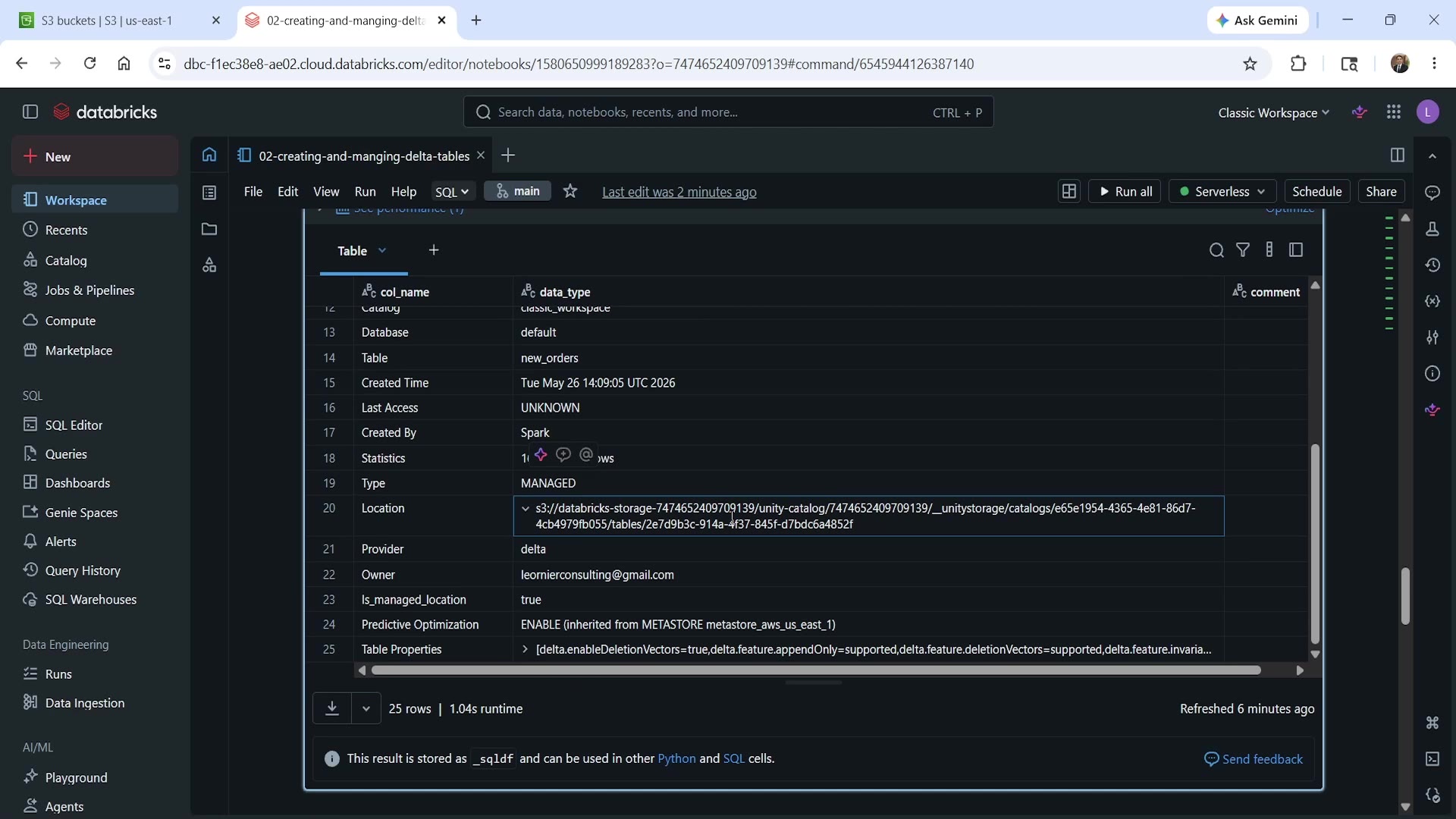 DESCRIBE EXTENDED output for a managed table
Here, Type shows MANAGED, and the Location is a path Databricks generated and owns entirely (deep inside the Unity Catalog storage structure) — notice the field Is_managed_location: true.
Creating an External Table
You create an external table the same way as a managed one — the only difference is adding a LOCATION clause pointing to a bucket path you control:
sqlCREATE OR REPLACE TABLE products_ext ( product_id INT, name STRING, price DOUBLE ) USING DELTA LOCATION "s3://external-storage-bucket-624293007230-us-east-1-an/external-tables/products_ext"
As soon as you specify LOCATION explicitly, Databricks treats it as an external table.
Let's load some data into it:
sqlINSERT INTO products_ext SELECT * FROM electronics
Now check its type:
sqldescribe extended products_ext
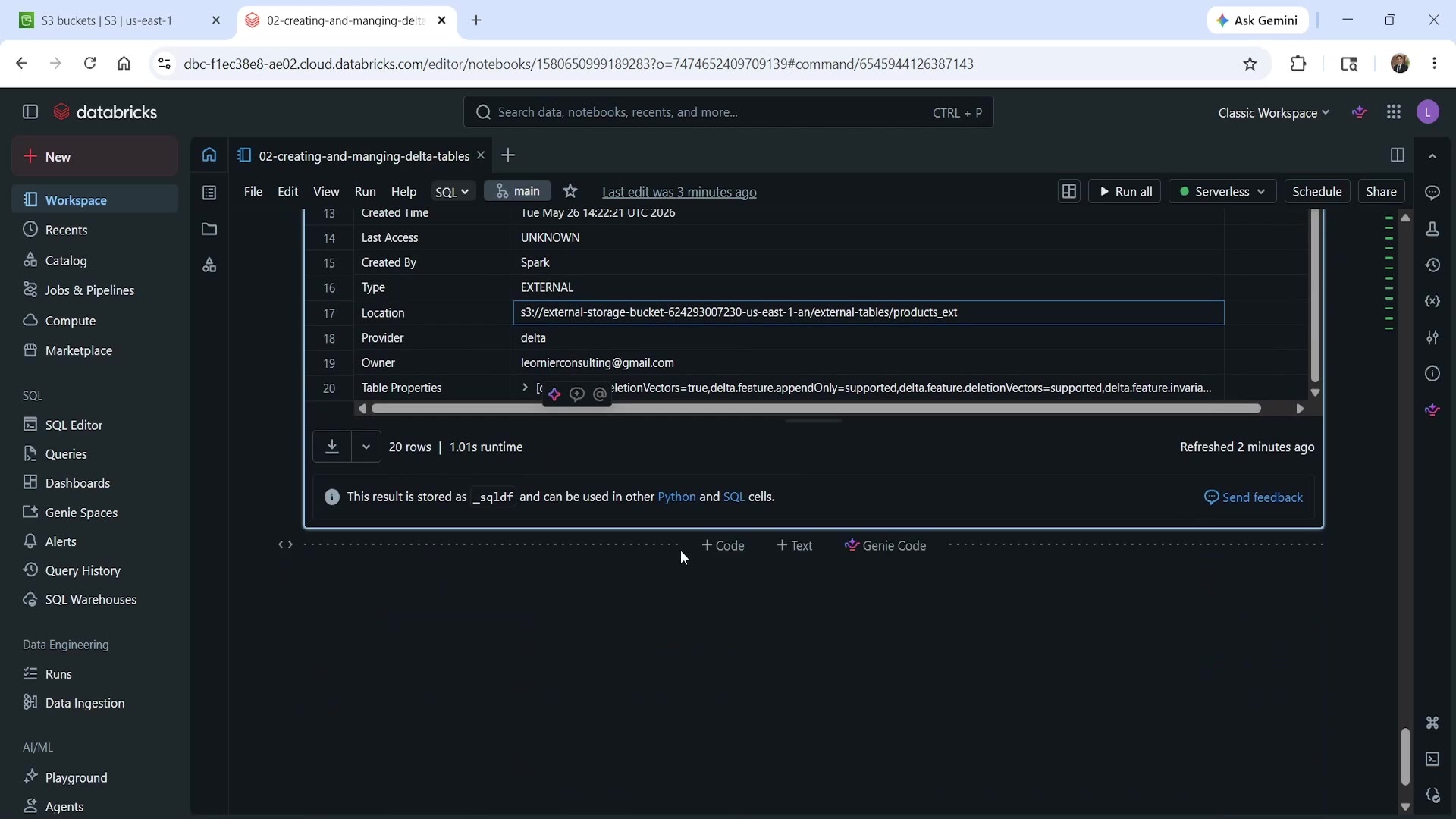 DESCRIBE EXTENDED output for an external table
This time, Type shows EXTERNAL, and the Location is exactly the S3 path we specified — not something Databricks generated.
Proving the Difference: Drop the Table
Let's drop this external table:
sqldrop table products_ext
Try querying it afterward:
sqlselect * from products_ext
This fails — Databricks reports the table doesn't exist, since its metadata entry is gone. But what about the actual data?
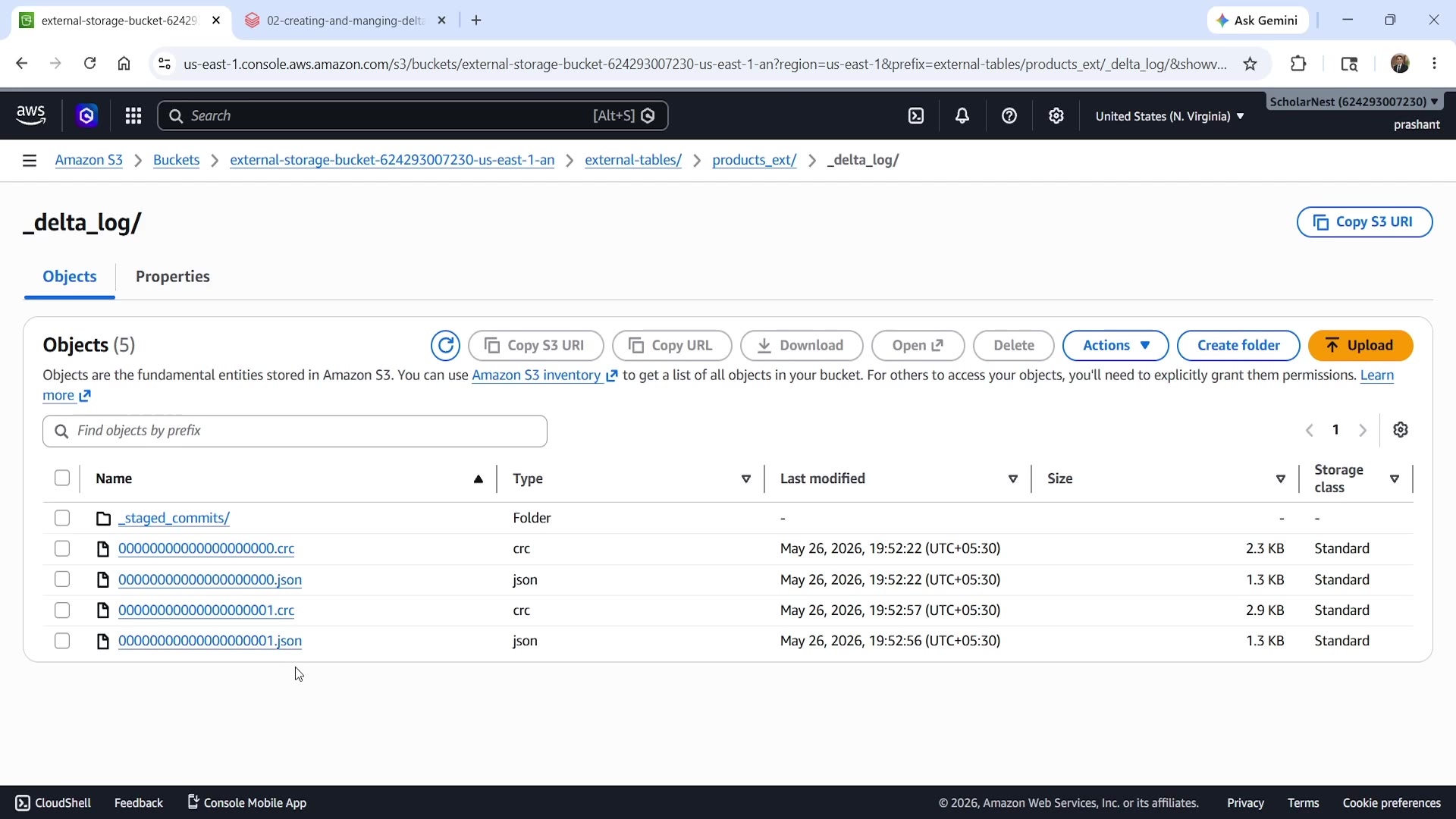 S3 bucket showing the data survives after DROP TABLE
Checking the S3 bucket directly, at the exact path we specified (external-tables/products_ext/), the data is still there — completely untouched. Inside _delta_log/, you'll find two transaction log files: one for the table creation, one for the data load (matching the two transactions we performed). Databricks removed the table from its catalog, but it never touched the files — because with an external table, that data was never Databricks' to delete.
Contrast this with what would happen if we dropped new_orders (our managed table): both the metadata and the S3 files would eventually be deleted.
Summary
| Managed Table | External Table | |
|---|---|---|
| Metadata ownership | Databricks (Unity Catalog) | Databricks (Unity Catalog) |
| Data file ownership | Databricks | You (external storage path) |
| Storage location | Auto-chosen by Databricks | Specified via LOCATION |
DROP TABLE behavior | Deletes metadata and data files | Deletes metadata only |
| Best for | Your own tables — single source of truth | Data owned by another system/team |
| Approach | How | Best For |
|---|---|---|
| DDL | CREATE OR REPLACE TABLE ... (columns) USING DELTA | Defining a table's structure explicitly, from scratch |
| CTAS | CREATE OR REPLACE TABLE ... USING DELTA AS SELECT ... | Deriving a new table's schema directly from a query |
| Spark DataFrame API | df.write.format("delta").saveAsTable(...) | Creating tables programmatically from Spark code |
All three approaches work for both managed and external tables — the only difference is whether you specify a LOCATION.
See you again. Keep learning, and keep growing!