What is Delta Lake and Why It Matters
Welcome to Mastering Delta Lake on the Databricks Platform. In this course, we'll learn about Delta Lake — its internals, architecture, how it works, and how to actually use it on Databricks.
In this first lecture, let's build an introduction to Delta Lake and understand how it's architected on the Databricks platform.
A Scenario: What Goes Wrong Without Delta Lake
Before talking about Delta Lake itself, let's walk through a scenario that shows why it exists.
Imagine you're working on a project with a table called orders, and its data lives in a storage bucket — say, dbfs://my-bucket/orders/ — on Amazon S3 or Azure ADLS Gen2. You've loaded some initial data, stored as a single Parquet file, F1.
Now, this table is part of an active project, so multiple jobs write to it. Let's say Batch Job A runs periodically, writing new data into this same directory. At the same time, Batch Job B is also writing — a completely separate job, writing its own new Parquet file into the same location.
Here's where it gets interesting. Imagine this moment in time: Batch Job A has finished writing file F2, and is now partway through writing another file, F4. Meanwhile, Batch Job B is partway through writing its own file, F3. At this exact moment, a user runs a query against this table.
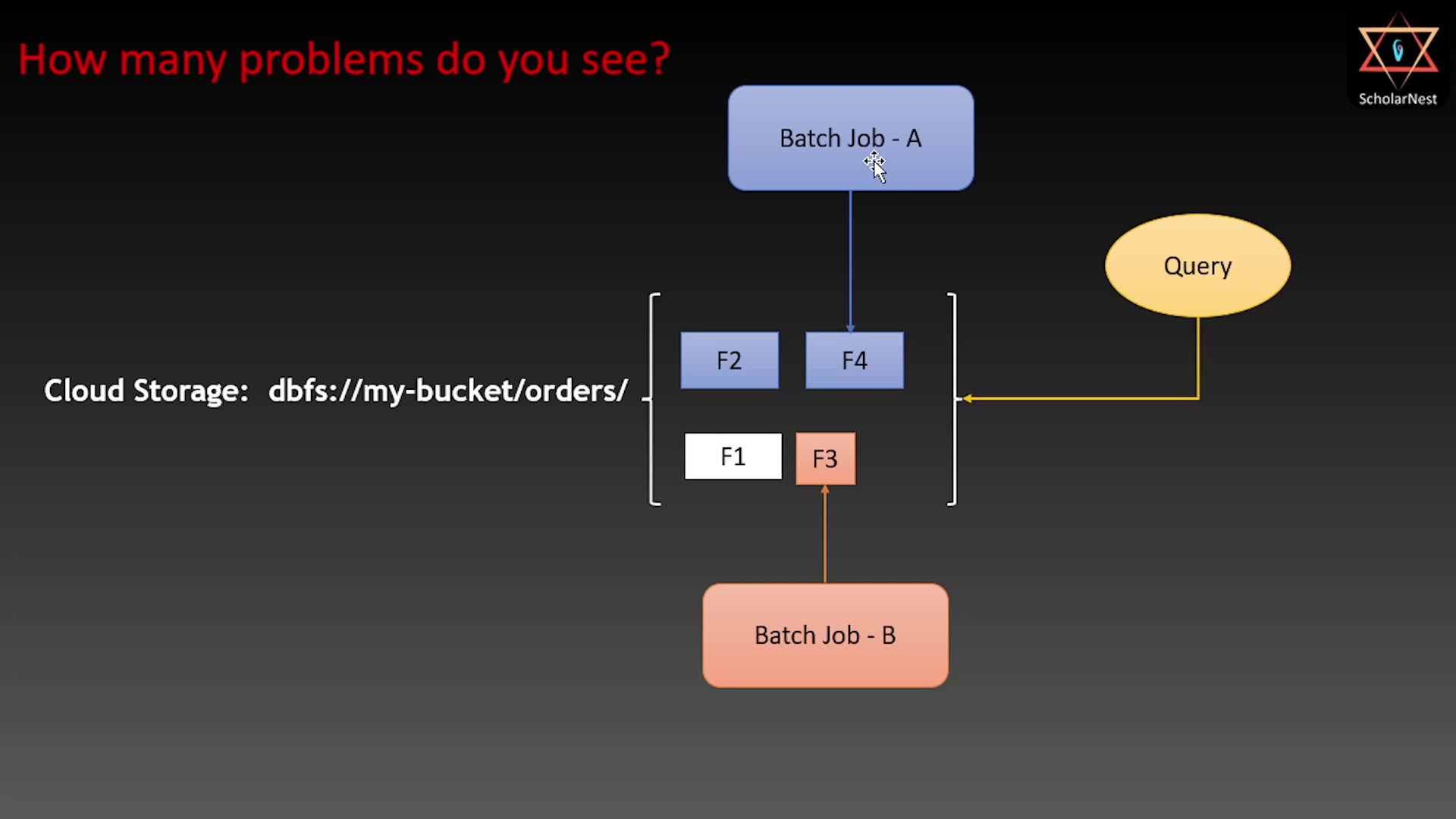 Concurrent writes and the atomicity problem
How many problems do you see here?
Problem 1: No Atomicity
Nothing stops the query from seeing file F4 while it's still being written — or worse, seeing a mix of completed and half-written files. There's no mechanism to say "don't show this data yet, the transaction isn't done." The query simply reads whatever files exist at that moment — no error, no warning, just silently corrupted or incomplete results.
Problem 2: No History
If a bad pipeline run overwrites your data, there's no built-in rollback. Recovering means relying on backups — and backups are often missing, outdated, expensive to maintain, and slow to restore from.
Problem 3: Performance Decay
Every small batch write creates a new Parquet file. Over time, this can lead to thousands of tiny files accumulating in a directory. Scanning and processing large numbers of small files in Spark is genuinely slow — this directly hurts query performance.
These three problems — no atomicity, no history, and performance decay — are exactly what Delta Lake was built to solve.
What Is Delta Lake?
At its core, Delta Lake is a storage layer that sits on top of your storage bucket. It is not a database, and it's not a replacement for S3 or ADLS. Think of it as a thin but powerful layer of intelligence that turns a plain storage bucket into something that behaves like a reliable, queryable, versioned data store.
A Delta table consists of two things, both living in the same storage location:
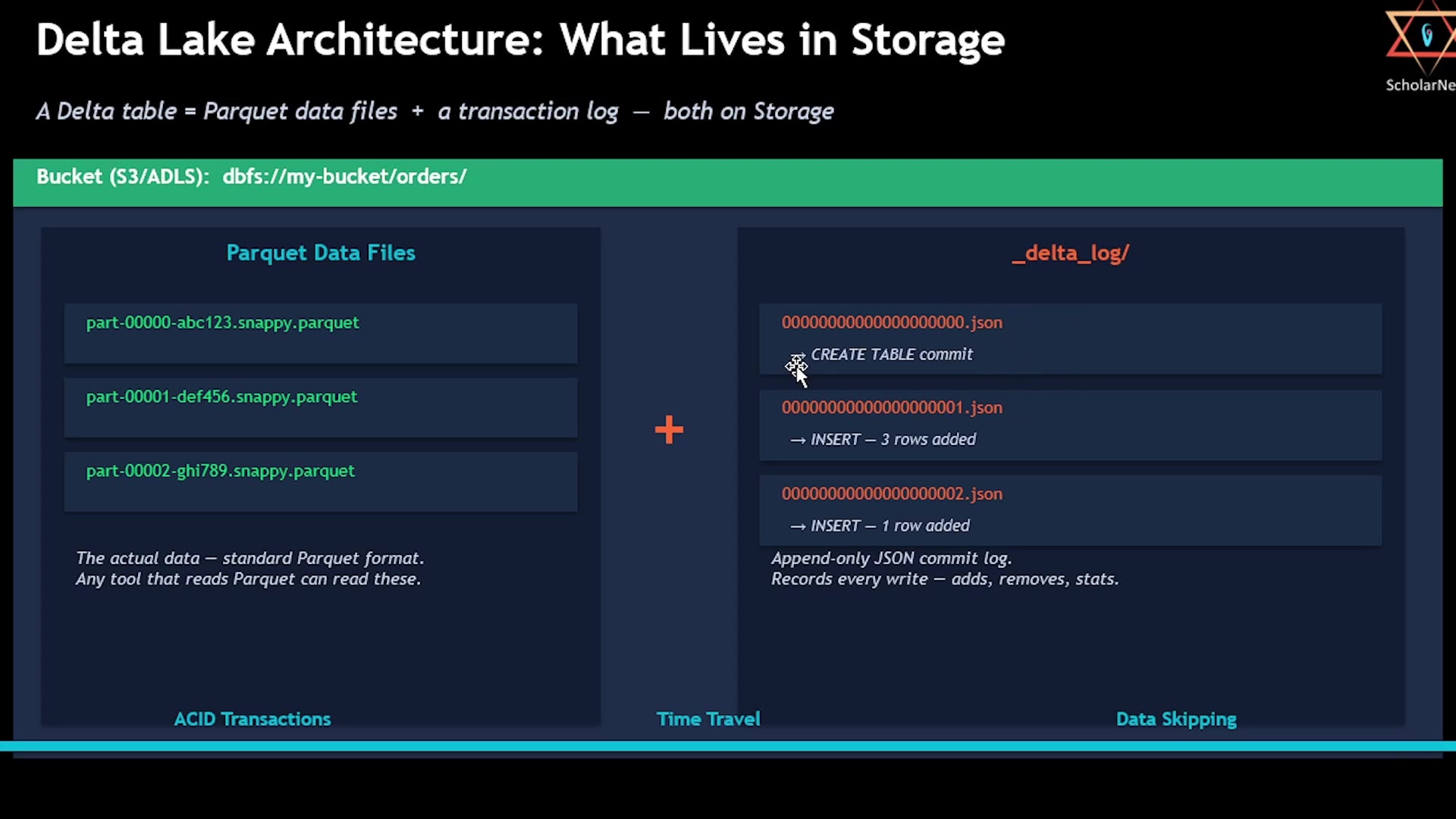 Delta Lake architecture: what lives in storage
- Parquet data files — exactly the format you already know. If you strip away everything else, the underlying data is just Parquet, sitting in the bucket. Any tool that can read Parquet can read the raw data.
- A folder called
_delta_log/— this is the transaction log, and it's the real secret sauce of Delta Lake.
The Transaction Log
Every single write to a Delta table — every insert, update, or delete — adds a new, sequentially numbered JSON file to _delta_log/: 000...000.json, 000...001.json, 000...002.json, and so on. Each file records exactly what changed: which Parquet files were added, which were removed, and statistics about the data.
This transaction log is what gives Delta Lake its three superpowers:
- ACID transactions — a write is invisible to readers until it's fully committed to the log. Anyone reading the table checks the log first, and only reads the files that are officially committed. No more half-written batches leaking into downstream queries.
- Time travel — since every version of the table is recorded in the log, you can query the table as it existed at any previous point in time. We'll explore this in later lectures.
- Data skipping — the log stores min/max statistics for each file, so queries can skip files that couldn't possibly contain the data they're looking for. This is a big part of why Delta Lake stays fast even on very large tables.
The key mental model: Delta Lake = Parquet data files + a transaction log, both living together in the same storage location. That's it. But that transaction log changes everything.
How Delta Lake Relates to Unity Catalog
You're already familiar with Unity Catalog — Databricks' metadata layer, which tracks which tables exist, where they're stored, and who has permission to access them.
Delta Lake and Unity Catalog are two different layers that always work together on the Databricks platform. Think of it as a three-layer stack:
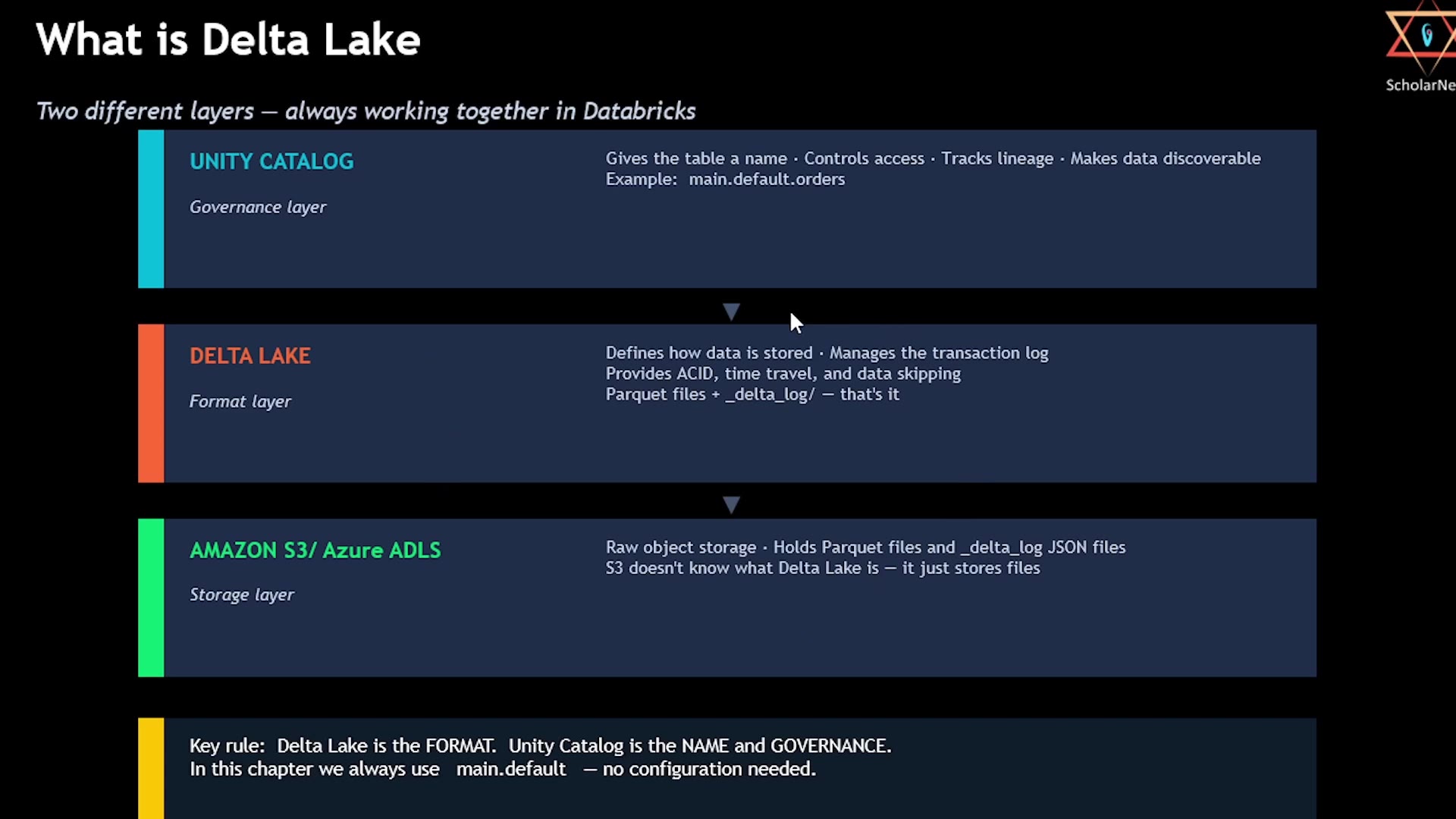 The three-layer stack: storage, Delta Lake, Unity Catalog
- Storage layer (bottom) — Amazon S3 or Azure ADLS. Raw object storage. It holds the Parquet files and
_delta_logJSON files — and it has no idea what Delta Lake even is. It just stores files. - Delta Lake (middle) — the format layer. It defines how data is stored, manages the transaction log, and provides ACID transactions, time travel, and data skipping.
- Unity Catalog (top) — the governance layer. It gives the table a human-readable name (e.g.,
main.default.orders), controls access, tracks lineage, and makes data discoverable across your organization.
A Delta table can technically exist without Unity Catalog — just raw Parquet files and a _delta_log folder sitting in a bucket, with no name registered anywhere. But in Databricks, every table you work with is registered in Unity Catalog, so you can query it by a friendly name. When you write SELECT * FROM table_name, Unity Catalog is what tells Databricks where to find the table — and Databricks then reads the underlying Delta files according to the rules defined by Delta Lake.
Key rule to remember: Delta Lake is the format. Unity Catalog is the name and governance.
Seeing It in Action
Let's put this into practice. In your Databricks Classic Workspace (Premium edition — this hands-on part needs access to the underlying cloud storage bucket, which isn't available on the Free Edition), create a new folder called Delta Lake, and inside it, a notebook named 01-Introduction-to-Delta-Lake. Make sure it's a SQL notebook.
Step 1: Set Your Catalog and Schema
sqlUSE CATALOG classic_workspace; USE SCHEMA default;
(Your catalog name will typically match your workspace name, and the schema defaults to default.)
Step 2: Create a Delta Table
sqlCREATE OR REPLACE TABLE orders ( order_id INT, customer STRING, amount DOUBLE, status STRING ) USING DELTA;
The USING DELTA clause explicitly specifies the Delta Lake format. In Databricks, Delta is actually the default even if you don't specify it — but it's good practice to be explicit.
Step 3: Insert Some Data
sqlINSERT INTO orders VALUES (1, 'Alice', 120.50, 'completed'), (2, 'Bob', 89.00, 'completed'), (3, 'Carol', 340.00, 'pending');
sqlINSERT INTO orders VALUES (4, 'David', 55.75, 'completed');
That's three transactions in total: creating the table, inserting three records, and inserting one more record.
Step 4: Find the Table's Storage Location
Go to Catalog, find your orders table, and check the Details tab — it shows the storage location, something like:
s3://databricks-storage-xxxxxxxxxx/unity-catalog/xxxxxxxxxx/__unitystorage/catalogs/xxxxx/tables/xxxxx
Step 5: Look Inside the Storage Bucket
Navigating to that location in your AWS S3 console, inside _delta_log/, you'll find exactly what the architecture predicted:
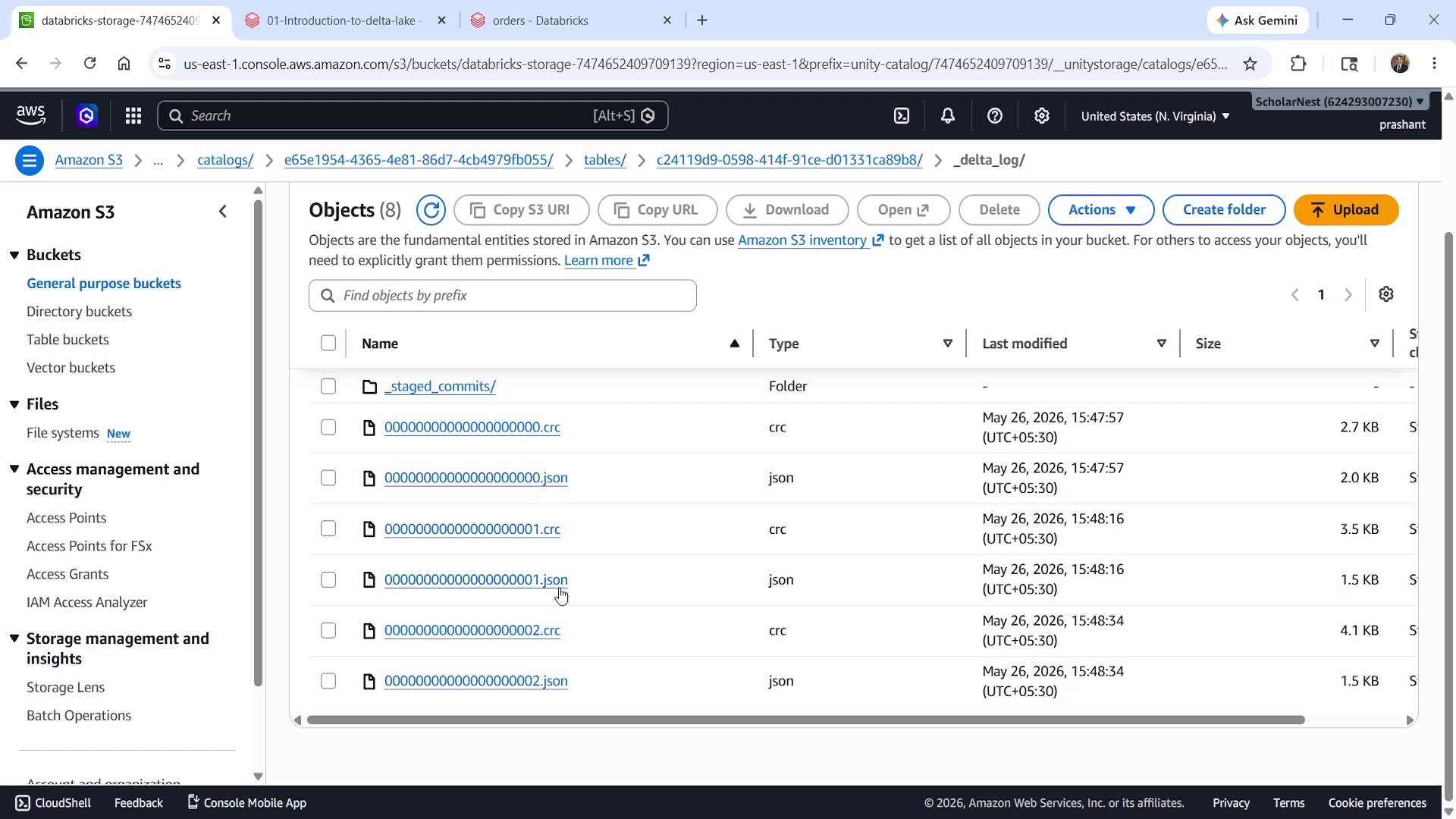 Actual _delta_log JSON files in S3
Three JSON files: 000...000.json, 000...001.json, 000...002.json — one per transaction. (You'll also see matching .crc checksum files alongside them.) One directory level up, you'd also find two Parquet data files — one holding the three records from the first insert, and one holding the single record from the second insert. Notice: the table-creation transaction itself produced zero Parquet files, since no data was written at that point — only the log entry.
If you open one of these JSON files, you'll find real transaction detail: a commit timestamp, user info, the operation type (e.g., append), which notebook/cluster performed it, how many rows and files were affected, which specific data file was added, and min/max statistics for the columns in that file (exactly the stats that power data skipping).
Step 6: View Table History Without Digging Into the Bucket
Manually digging through S3 isn't practical day to day. Instead, Delta Lake gives you a SQL command for this:
sqlDESCRIBE HISTORY orders;
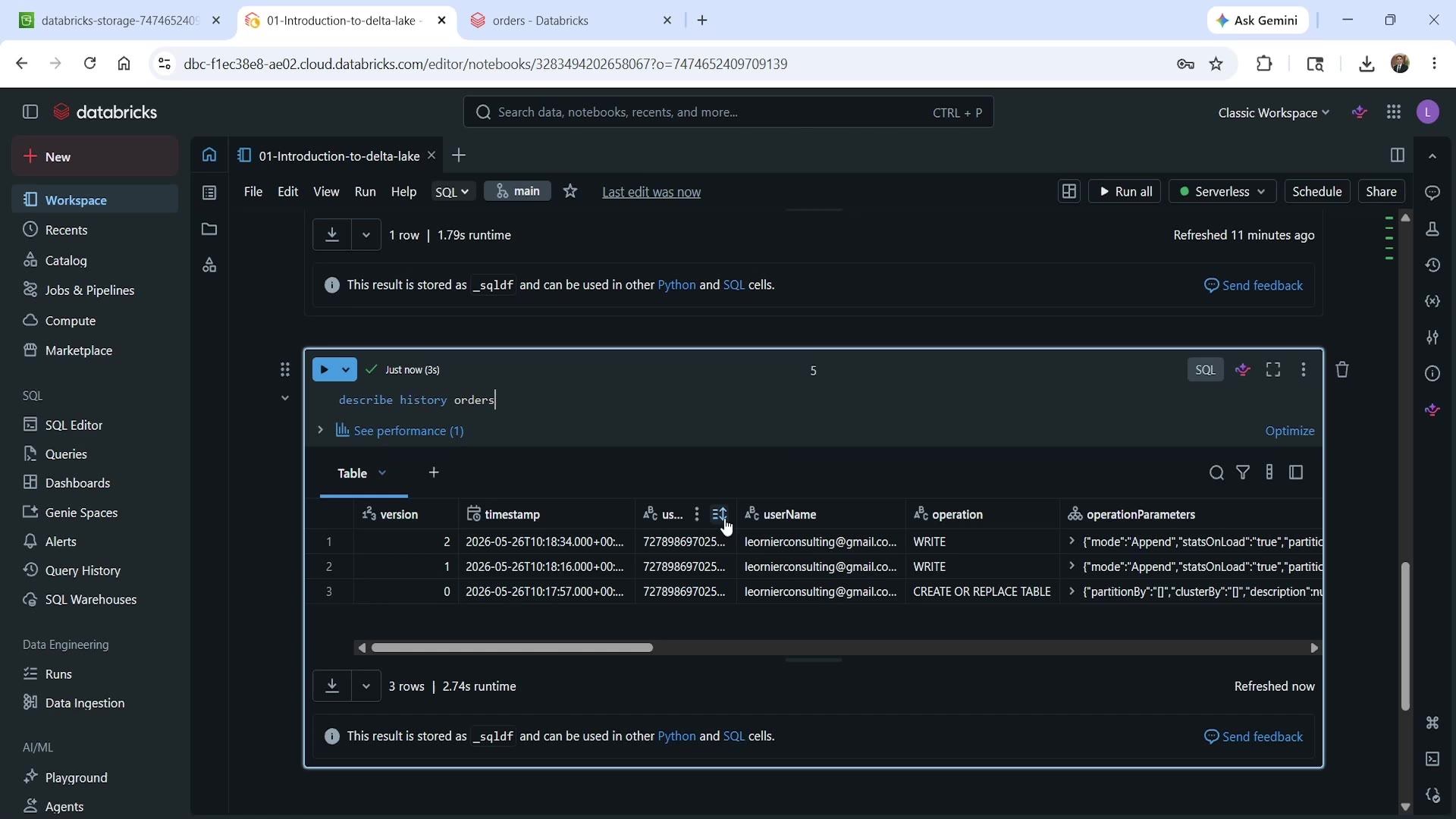 DESCRIBE HISTORY output
This returns a clean, readable table showing every version of the table — version 0, 1, 2 — each with its timestamp, the user who made the change, the operation (CREATE OR REPLACE TABLE, WRITE, etc.), and detailed operation metrics. This history is what powers time travel and rollback capability, which we'll explore in upcoming lectures.
Key Takeaways
- Delta Lake is not a database. It's a storage layer on top of your existing storage bucket (S3, ADLS), adding a transaction log alongside your Parquet data files.
- The transaction log is what makes the difference. Plain storage + Parquet alone can't give you atomic writes, full history, or fast queries via data skipping — the
_delta_logis what unlocks all three. - Delta Lake and Unity Catalog are two different, complementary layers. Delta Lake defines how data is stored; Unity Catalog gives it a name, governs access, and makes it discoverable. They always work together in Databricks.
See you again. Keep learning, and keep growing. Thank you.