Parameterizing Jobs — Passing Parameters to Notebook Task
The last lecture built a working job — pipeline task, notebook task, dependency, trigger, done. That's a complete picture of Lakeflow Jobs. But Lakeflow Jobs offers a lot more flexibility than that, and one of the most important pieces is parameters.
Why Parameters Matter
Open the dq_check_gold notebook from the last lecture and look closely: the catalog name and schema
name are hardcoded directly into the code (dev.dbx_course.gold_daily_revenue). Now think about
deploying this same job across environments — dev, test, production. The catalog might be different
in test. The schema might be different in production. Moving this job across environments, as
written, means editing the code every single time.
That's a real problem. A code change means re-testing. Needing to touch code just to redeploy the same job into a different environment isn't something a real production pipeline should require.
But it's not only about environments. Consider what the DQ notebook's row-count check is actually
checking: row_count > 0. On its own, that's a weaker test than it looks. Suppose the pipeline ran
successfully on January 1st and produced 1,000 rows. If tomorrow's run somehow produces nothing
new, a plain row_count > 0 check still passes — because those 1,000 rows from yesterday are still
sitting in the table. The check isn't actually validating today's run; it's validating that the
table has ever had data in it, which is a much weaker guarantee.
The fix: filter by the date the job is actually running for, and count only that day's rows. But that date needs to come from somewhere — it can't be hardcoded, since it changes on every run. That's exactly what a parameter is for.
Four Parameter Mechanisms
Lakeflow Jobs offers four distinct mechanisms for getting values into a job and its tasks:
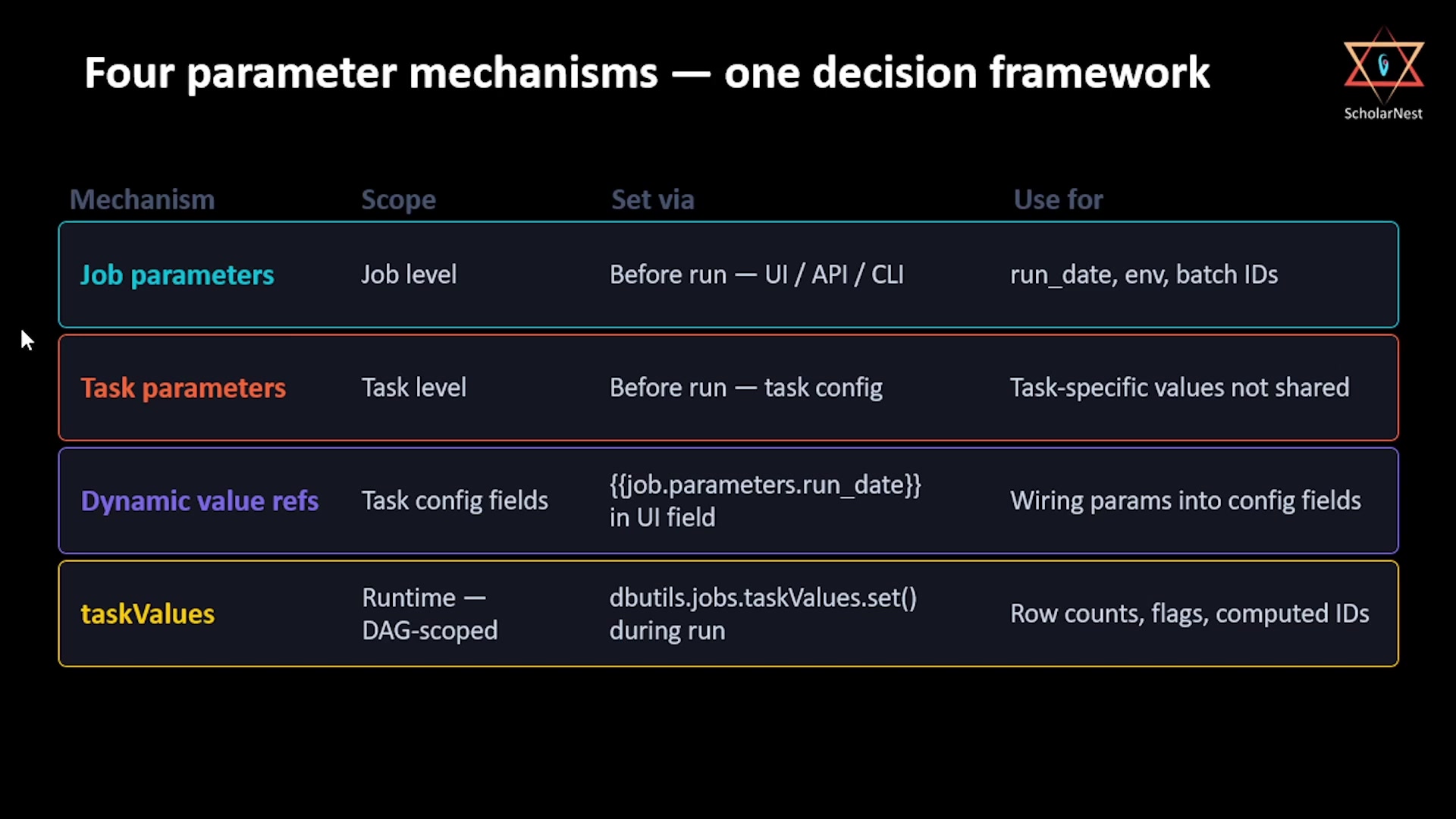 Four parameter mechanisms — one decision framework
- Job parameters — defined at the job level, and automatically pushed down to every task that can use key/value parameters. Use these for values shared across the whole job: a run date, an environment name, a batch ID.
- Task parameters — defined directly on one task, not passed to the job as a whole. Use these when a value is specific to a single task and no other task needs it.
- Dynamic value references — configuration values Databricks generates automatically at the job
or task level (job ID, run ID, start time, trigger type, and many more), referenced using
{{ }}syntax inside a parameter's value field. These let you wire platform-generated values into a parameter without hardcoding anything. - Task values (
taskValues) — values computed by one task at runtime and explicitly passed forward to a later task in the same DAG. Unlike the other three (which are set before a run starts), these are generated during the run itself.
Together, these four cover nearly every job parameterization need.
Job Parameters in Practice
Back in the medallion-orchestration-job from the last lecture, defining a job parameter is done
through Job parameters → Edit parameters:
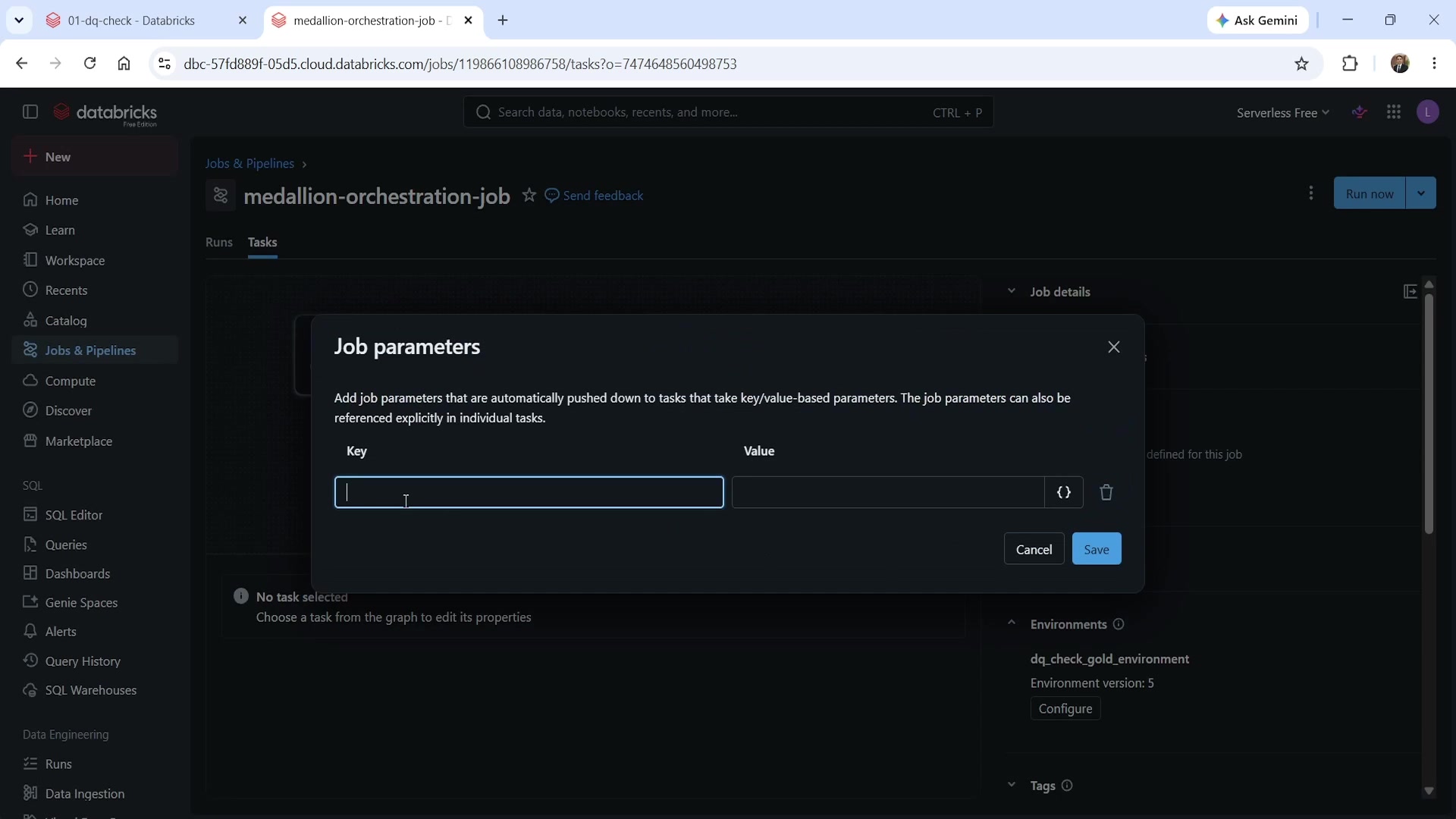 Job parameters dialog
A parameter named run_date was added here, with a default value of 2024-01-15. Once saved, this
value is automatically pushed down to every task in the job — visible in each task's own parameters
section, ready to use, with no additional wiring required.
Updating the notebook to receive it
To actually consume this value, the notebook needs a matching widget:
pythondbutils.widgets.text("run_date", "2024-01-15", "Run Date") run_date = dbutils.widgets.get("run_date") table = "dev.dbx_course.gold_daily_revenue" print(f"Running DQ check for run_date={run_date}") df = spark.table(table).filter(f"order_date = '{run_date}'")
The widget name (run_date) has to match the job parameter's key exactly. Once that value is pulled
from the widget, it flows into the same filter(...) that narrows the DataFrame down to just the
current run's date — and every check downstream (row count, null revenue, negative revenue) now
validates this run's data specifically, not the table's entire history.
One important platform limitation as of this recording: SDP pipeline tasks cannot yet receive job
or task parameters — that capability is currently in beta, not GA. So while run_date is pushed
down to the pipeline task too, the pipeline itself doesn't consume it; only the notebook task does.
That's expected, not a bug.
Task Parameters and Dynamic Value References
To see a task-specific parameter in action, an execution_date parameter was added directly to the
dq_check_gold task (not the job). Rather than hardcoding a value, its value field used a dynamic
value reference — and typing {{ in that field triggers an autocomplete list of everything
Databricks can supply automatically:
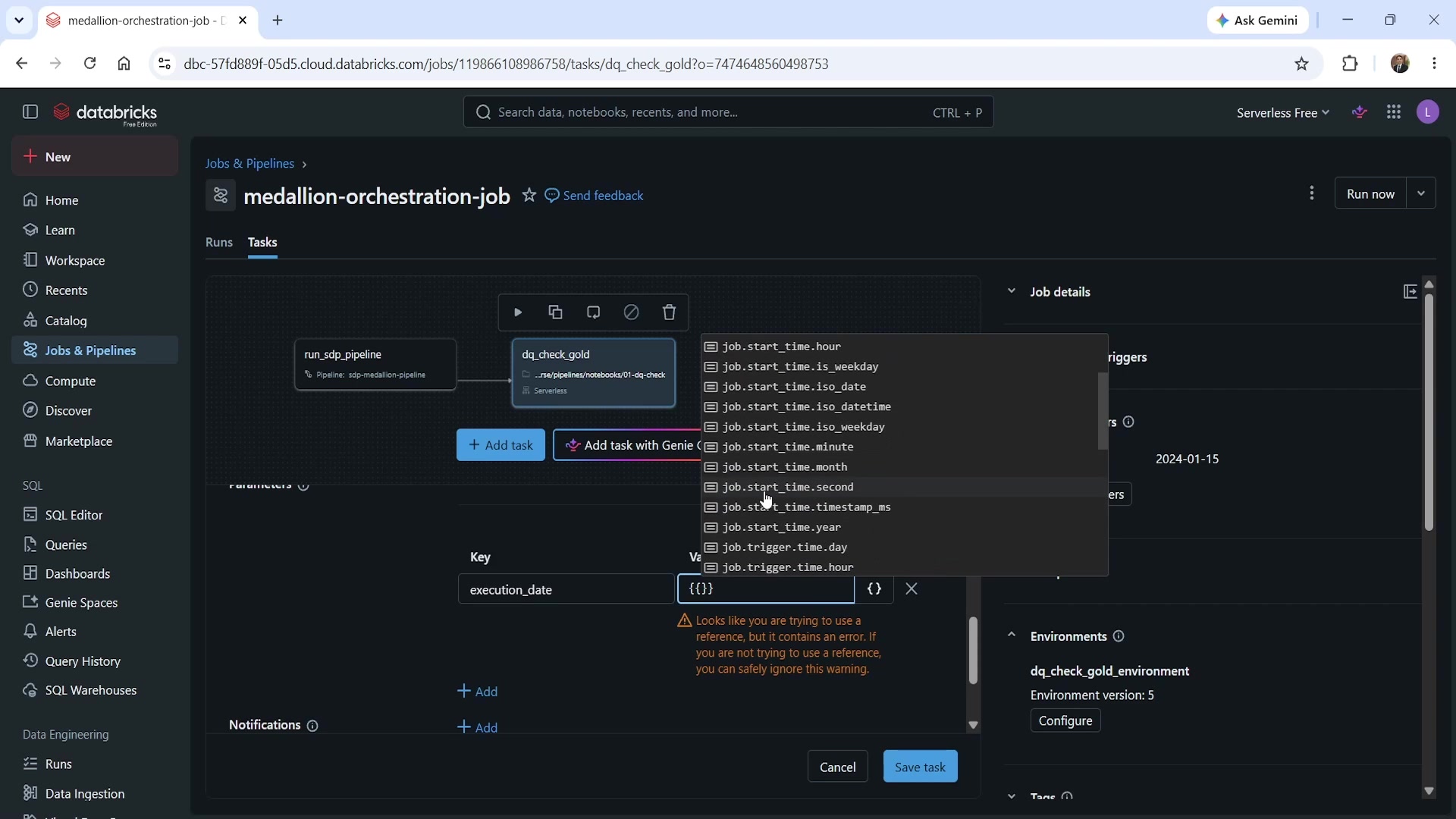 Dynamic value reference autocomplete
Options like job.start_time.iso_date, job.start_time.timestamp_ms, and many others are all
available here — values generated by the platform itself at run time, with no manual input needed.
For this example, run_date already covers the actual requirement — this was purely to demonstrate
the mechanism — so execution_date was removed afterward rather than kept.
Running With Different Parameter Values
Running the job with Run now alone would just use the job parameter's default value
(2024-01-15). To actually pass a different value per run, use Run now with different settings
instead — it presents every parameter with its current default and lets you override it before
triggering.
Running with run_date = 2024-01-16 deliberately set up a scenario where the check should fail: no
data had been loaded for that date. Watching the run confirms exactly that:
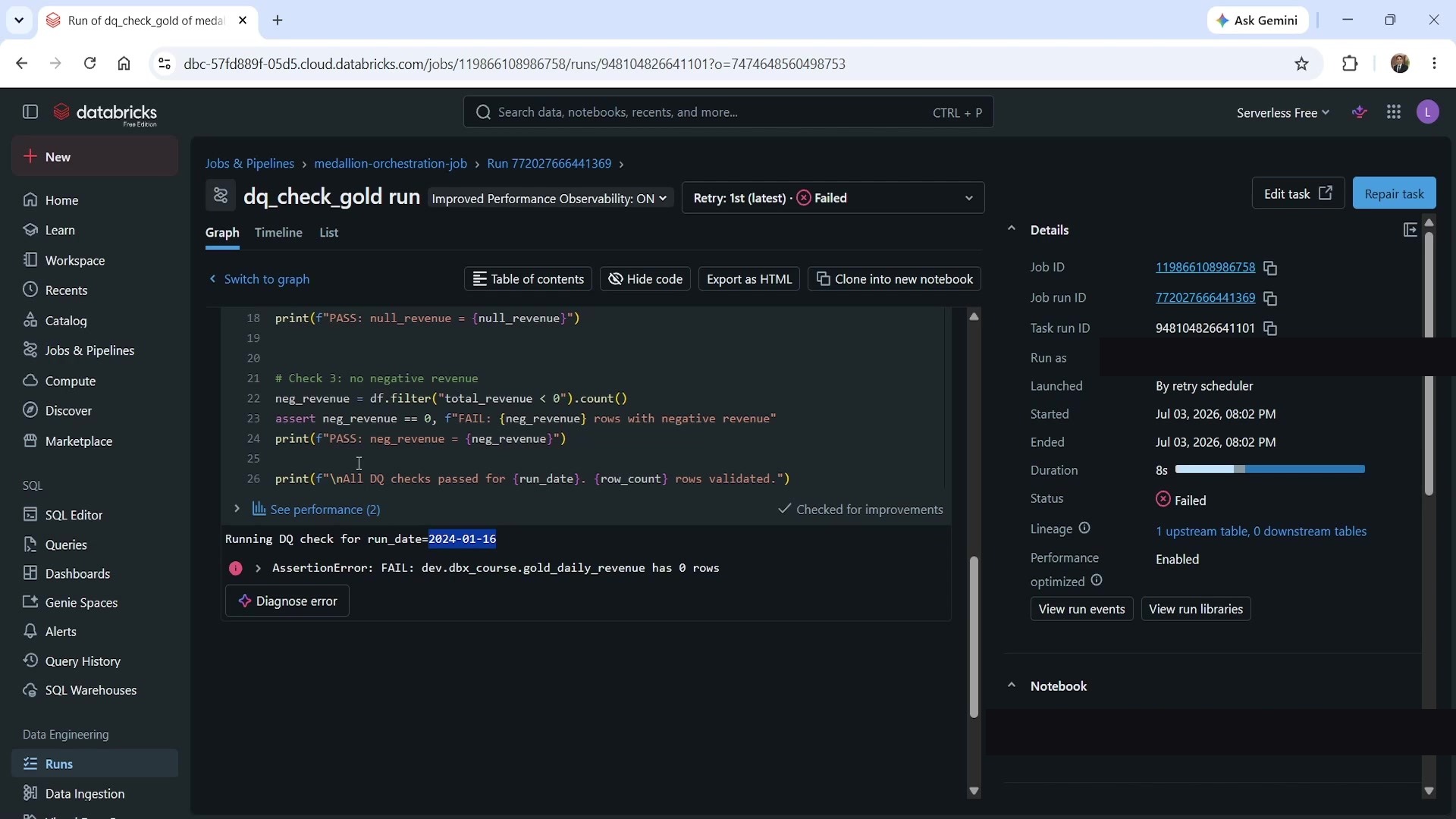 DQ check failed for a run_date with no matching data
The notebook printed Running DQ check for run_date=2024-01-16 — confirming the parameter was
received correctly — and then failed with AssertionError: FAIL: dev.dbx_course.gold_daily_revenue has 0 rows. That's the parameter genuinely changing behavior, not just being logged. By default, a
task retries twice after an initial failure (three attempts total); after all three failed here, the
job stopped and reported failure — exactly the behavior a real DQ gate should have.
To see the parameter succeed instead, a new batch of orders and customers (dated March 1st and
March 2nd) was uploaded to the landing volume, and the job was run again with run_date = 2024-03-01.
This time, both tasks succeeded — the notebook printed Running DQ check for run_date=2024-03-01,
followed by PASS: row_count = 1, PASS: null_revenue = 0, PASS: neg_revenue = 0, and finally All DQ checks passed for 2024-03-01. 1 rows validated.
Summary
| Concept | Key point |
|---|---|
| Why parameterize | Avoids hardcoding environment- or run-specific values (catalog, schema, dates) directly into code |
| Job parameter | Defined once at the job level; automatically pushed down to every task |
| Task parameter | Defined on a single task; used when a value is specific to that task alone |
| Dynamic value reference | {{ }} syntax referencing platform-generated values (job ID, run ID, start time, etc.) |
Task values (taskValues) | Computed by one task at runtime, passed forward to a later task in the same run |
| Receiving a parameter in a notebook | dbutils.widgets.text(name, default, label) + dbutils.widgets.get(name) — the widget name must match the parameter key |
| SDP pipeline task limitation | Cannot yet receive job/task parameters — this feature is in beta, not GA, as of this recording |
| Run now vs. Run now with different settings | The former uses default parameter values; the latter lets you override them per run |
| Default retry behavior | A failed task retries twice by default (three attempts total) before the job is marked failed |
| A row-count-only check is weaker than it looks | Without filtering by run date, row_count > 0 can pass on stale data from a previous run that produced nothing new |
See you again in the following lecture. Keep learning, and keep growing!