OPTIMIZE, VACUUM and Data Retention
In this lecture, let's learn about two powerful Delta table commands: OPTIMIZE and VACUUM.
Setup
Open (or create) a notebook — 06-optimize-and-vacuum — connect a cluster, and set your catalog/schema:
sql%sql USE CATALOG workspace; USE SCHEMA default;
Setting Up the Problem
To understand what OPTIMIZE actually does, we first need to reproduce the problem it solves.
sql%sql CREATE OR REPLACE TABLE transactions ( txn_id INT, customer_id INT, amount DOUBLE, category STRING, txn_date DATE ) USING DELTA COMMENT 'Transactions table — used to demonstrate OPTIMIZE and VACUUM' TBLPROPERTIES ( 'delta.autoOptimize.optimizeWrite' = 'false', 'delta.autoOptimize.autoCompact' = 'false' );
Notice the two table properties set to false — these disable Delta's automatic optimization. We're turning that off deliberately here, purely so we can see the small-file problem clearly before fixing it ourselves. (In practice, you'd usually want these enabled.)
Simulating Many Small Writes
sql%sql INSERT INTO transactions VALUES (1, 101, 49.99, 'Electronics', '2024-01-05'); INSERT INTO transactions VALUES (2, 102, 129.00, 'Furniture', '2024-01-06'); INSERT INTO transactions VALUES (3, 103, 19.50, 'Electronics', '2024-01-07'); INSERT INTO transactions VALUES (4, 101, 89.99, 'Clothing', '2024-01-08'); INSERT INTO transactions VALUES (5, 104, 249.00, 'Furniture', '2024-01-09'); INSERT INTO transactions VALUES (6, 102, 34.99, 'Electronics', '2024-01-10'); INSERT INTO transactions VALUES (7, 105, 15.00, 'Clothing', '2024-01-11'); INSERT INTO transactions VALUES (8, 103, 199.99, 'Electronics', '2024-01-12'); INSERT INTO transactions VALUES (9, 101, 74.50, 'Furniture', '2024-01-13'); INSERT INTO transactions VALUES (10, 106, 9.99, 'Clothing', '2024-01-14');
Ten rows, ten separate INSERT statements — not one insert with ten rows. This matters: in a real pipeline, this pattern happens naturally all the time — streaming micro-batches, incremental API pulls every few seconds, one-row-at-a-time event processing. The result is always the same: one new Parquet file per write.
Checking the File Count
sql%sql DESCRIBE DETAIL transactions;
Look at numFiles — it shows 10. Ten tiny files, each holding just one row (sizeInBytes will be tiny too).
Here's the real-world problem: in production, this happens continuously — over weeks or months, a table like this can accumulate thousands, even hundreds of thousands, of tiny files. Reading a table made up of huge numbers of small files is a serious performance bottleneck. Since this is such a common, universal problem, Delta Lake provides a standard, built-in solution: OPTIMIZE.
OPTIMIZE: Compacting Small Files
sql%sql OPTIMIZE transactions;
OPTIMIZE reads all the small files and rewrites them into larger, well-sized files. With just 10 tiny rows, everything fits into a single file. (With a much larger table — say, 10,000 small files — OPTIMIZE wouldn't necessarily produce one giant file; it might produce several well-sized ones. But it will always dramatically reduce the file count.)
sql%sql DESCRIBE DETAIL transactions;
Now numFiles shows 1. Same 10 rows, same data — just packed into one file instead of ten. A query scanning this table now opens one file instead of ten; at scale, that difference compounds dramatically.
Optimize Is Also a Transaction
sql%sql describe history transactions
OPTIMIZE is itself a recorded transaction — you'll see it as a new version in the history (after the table creation and the 10 individual inserts).
A Note on ZORDER BY
sql%sql -- OPTIMIZE transactions ZORDER BY (category);
Older versions of OPTIMIZE supported an optional ZORDER BY clause. Since OPTIMIZE is already rewriting your data into larger files, Z-ordering takes advantage of that rewrite to physically co-locate rows with similar column values into the same files. If your queries commonly filter on a specific column (e.g., category), this lets Spark skip entire files that couldn't possibly contain the matching rows — a real performance win.
That said, Z-ordering has largely been superseded by Liquid Clustering, which we'll cover in an upcoming lecture — so it's good to know it exists, but it's not the recommended approach going forward.
Understanding the Problem VACUUM Solves
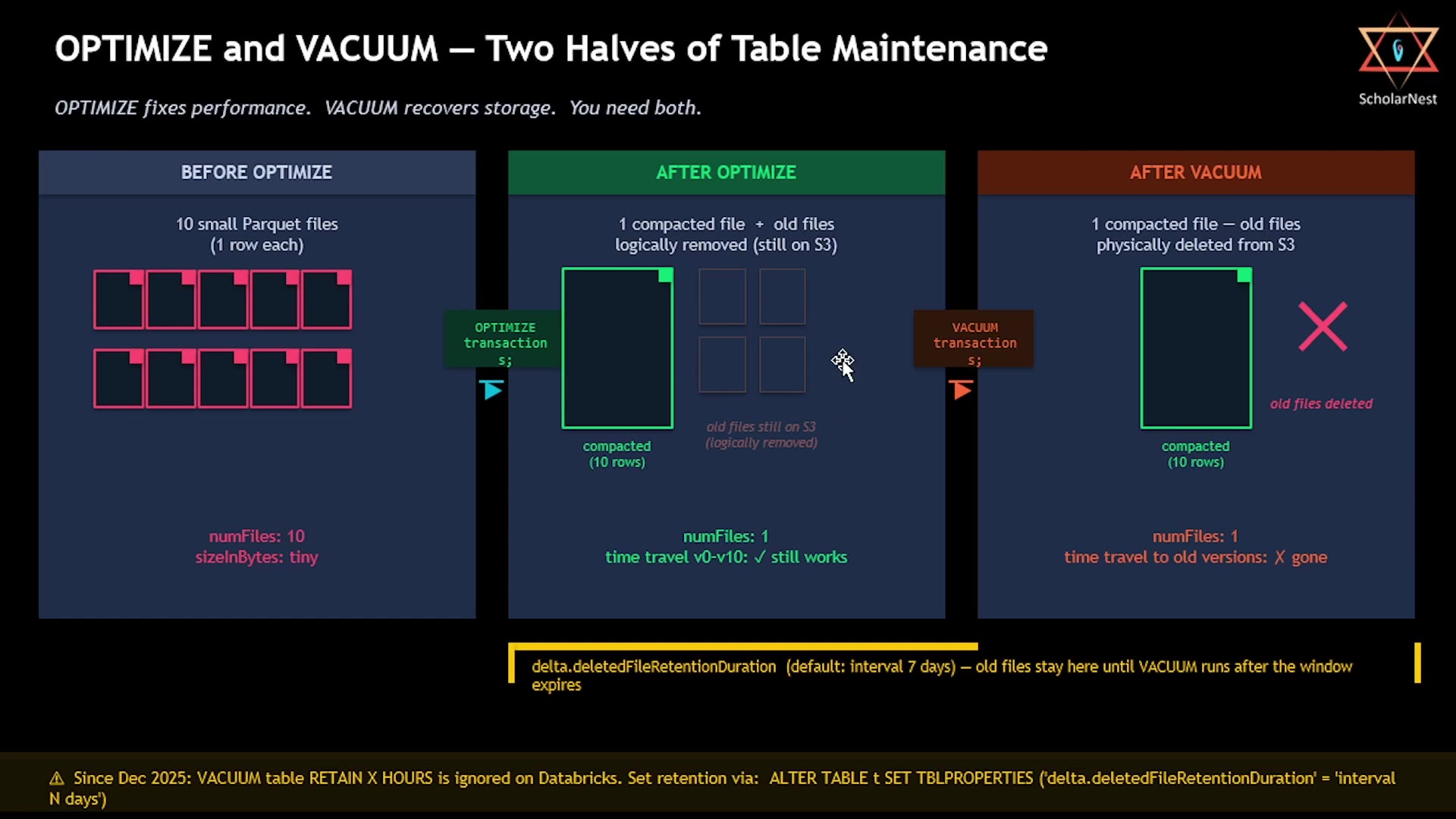 OPTIMIZE and VACUUM — two halves of table maintenance
Here's the key insight: OPTIMIZE does not delete the original 10 small files. It creates a new, compacted file, and records a new transaction saying "going forward, read only this new file." But the 10 original files are still sitting in your storage bucket — they're just no longer part of the current version.
Why keep them? Because those old files are exactly what powers time travel. If you go back to version 9, 8, 1, or 0, Delta needs those original files to reconstruct that historical state.
But here's the catch: in a real system, this happens continuously — new small files accumulating, periodic OPTIMIZE runs compacting them — and over a year, you can end up with enormous numbers of old, unreferenced files sitting in storage, serving no purpose except enabling time travel arbitrarily far into the past. If you don't actually need that much time travel history, these files are just wasted storage cost. That's the problem VACUUM solves — cleaning up files that are no longer needed.
VACUUM: Cleaning Up Old Files
Step 1: Dry Run
sql%sql VACUUM transactions DRY RUN;
Always dry-run first in production. VACUUM permanently, irreversibly deletes files — a dry run shows you exactly what would be deleted, without actually deleting anything. (Note: on the Databricks Free Edition, since the storage bucket is managed inside the Databricks account, you likely won't see the actual file list — but on a cloud-based premium account with your own S3 bucket, you would.)
Step 2: The Safety Check
sql%sql VACUUM transactions RETAIN 0 HOURS;
Running this fails — Delta has a built-in safety check. The error explains that a retention period under 7 days risks making concurrent readers see inconsistent data, and refuses to proceed. This is deliberate protection against accidentally vacuuming so aggressively that you break time travel or corrupt in-flight reads. By default, Delta protects the last 7 days of history.
Important recent change: since December 2025, the RETAIN X HOURS clause in the VACUUM command itself is actually ignored by Databricks. It won't throw a syntax error, but it silently has no effect. Retention is now controlled exclusively through a table property, not through command syntax.
Step 3: Set Retention via Table Property
sql%sql ALTER TABLE transactions SET TBLPROPERTIES ('delta.deletedFileRetentionDuration' = 'interval 0 hours');
This is how you actually control retention now. Setting it to interval 0 hours tells VACUUM to remove all logically-removed files immediately, regardless of when they were marked as removed.
Important: we're only setting this to 0 hours here for demo purposes — never do this in production. A realistic setting would be something like interval 30 days, if you need a month of time travel history.
Step 4: Run VACUUM for Real
sql%sql VACUUM transactions;
No need to specify RETAIN X HOURS anymore — the table property we just set controls this. This physically deletes the old, pre-OPTIMIZE files from S3.
Confirming What Happened
sql%sql desc history transactions
The history still shows every version — table creation, the 10 inserts, the OPTIMIZE, the property change, and the vacuum start/end. Nothing is removed from the history log — but the underlying data files for older versions are gone.
sql%sql SELECT * FROM transactions VERSION AS OF 5
This now throws an error — something like "cannot time travel beyond the deleted file retention duration". Version 5's files were physically vacuumed away, so that historical state can no longer be reconstructed. The current table still has all 10 rows (in the one compacted file) — only the old versions became unreachable.
Key Takeaways
OPTIMIZE:
- Compacts small Parquet files into larger, well-sized ones.
- Improves query scan performance immediately.
- Does not delete anything — old files remain in storage, just logically marked as no longer part of the current version.
VACUUM:
- Physically deletes files that are no longer referenced by any version within the retention window.
- Recovers storage cost.
- Deleted files generally cannot be recovered (unless you have a separate backup) — always dry-run first.
- Retention is set via the
delta.deletedFileRetentionDurationtable property (not theRETAIN X HOURSclause, as of December 2025). - The retention window defines how far back you can time travel. Set it based on your actual needs:
- 7 days is the sensible default for most tables.
- Compliance-sensitive tables might need 90 days.
- Storage-cost-sensitive tables with no real time travel need might use just 1 day.
One Final Note: Predictive Optimization
In production, you rarely need to run OPTIMIZE and VACUUM manually. Databricks offers a feature called Predictive Optimization, covered in an upcoming lecture, which automates both — running them based on actual table usage patterns, deciding when compaction or cleanup is needed. You'll still need to configure your retention window explicitly, but understanding what these two commands do under the hood matters — because you need to know what Predictive Optimization is doing automatically on your behalf, and how to override it when your requirements differ.
Summary
| Command | What It Does | Reversible? |
|---|---|---|
OPTIMIZE table_name | Compacts many small files into fewer, larger files | Yes — old files remain until vacuumed |
VACUUM table_name [DRY RUN] | Physically deletes files no longer needed within the retention window | No — permanent |
delta.deletedFileRetentionDuration | Table property controlling how far back time travel / vacuum retention extends | Set explicitly per table |
See you again. Keep learning, and keep growing!