Creating AWS Databricks Service Contract
In this lecture, let's set up a service contract between your AWS account and Databricks — this is what makes it possible to create a Databricks workspace on AWS.
Step 1: Sign In and Head to AWS Marketplace
Log in to console.aws.amazon.com as your IAM user (if your IAM user has admin permissions, you can do everything in this lecture from there — no need for root). Complete MFA if you've enabled it.
Databricks is available as a SaaS offering through the AWS Marketplace. Search for "AWS Marketplace" in the console, and open it. By default, it lands on Manage subscriptions — which will be empty if you haven't subscribed to anything yet.
Step 2: Find Databricks in the Marketplace
Go to Discover products, and search for "Databricks". You're looking for Databricks Data Intelligence Platform — click on it.
You'll land on the product page, with a "Try for free" option. This gives you a 14-day free trial, with a $400 credit limit.
A couple of important clarifications about this trial:
- This $400 credit is a Databricks credit, not an AWS credit. Databricks will adjust your bill against this $400 for 14 days.
- If you also consume additional AWS infrastructure (compute, storage, etc.) alongside Databricks, that's billed separately by AWS, and adjusted against your AWS credits instead.
- If 14 days is enough to finish your hands-on work, great — no cost. If not, your trial automatically converts to pay-as-you-go after 14 days, and you'll start incurring charges.
On the product page, you'll also see pricing details — Databricks usage is billed in DBUs (Databricks Billing/Units), and in this offer, 1 DBU = $1. Cost is purely usage-based: use less, pay less.
Click Subscribe to proceed.
Step 3: A Known Issue for Indian Customers
Here's something important if you're signing up from India: clicking Subscribe is very likely to fail, regardless of whether your AWS payment method is UPI, a credit card, or a debit card.
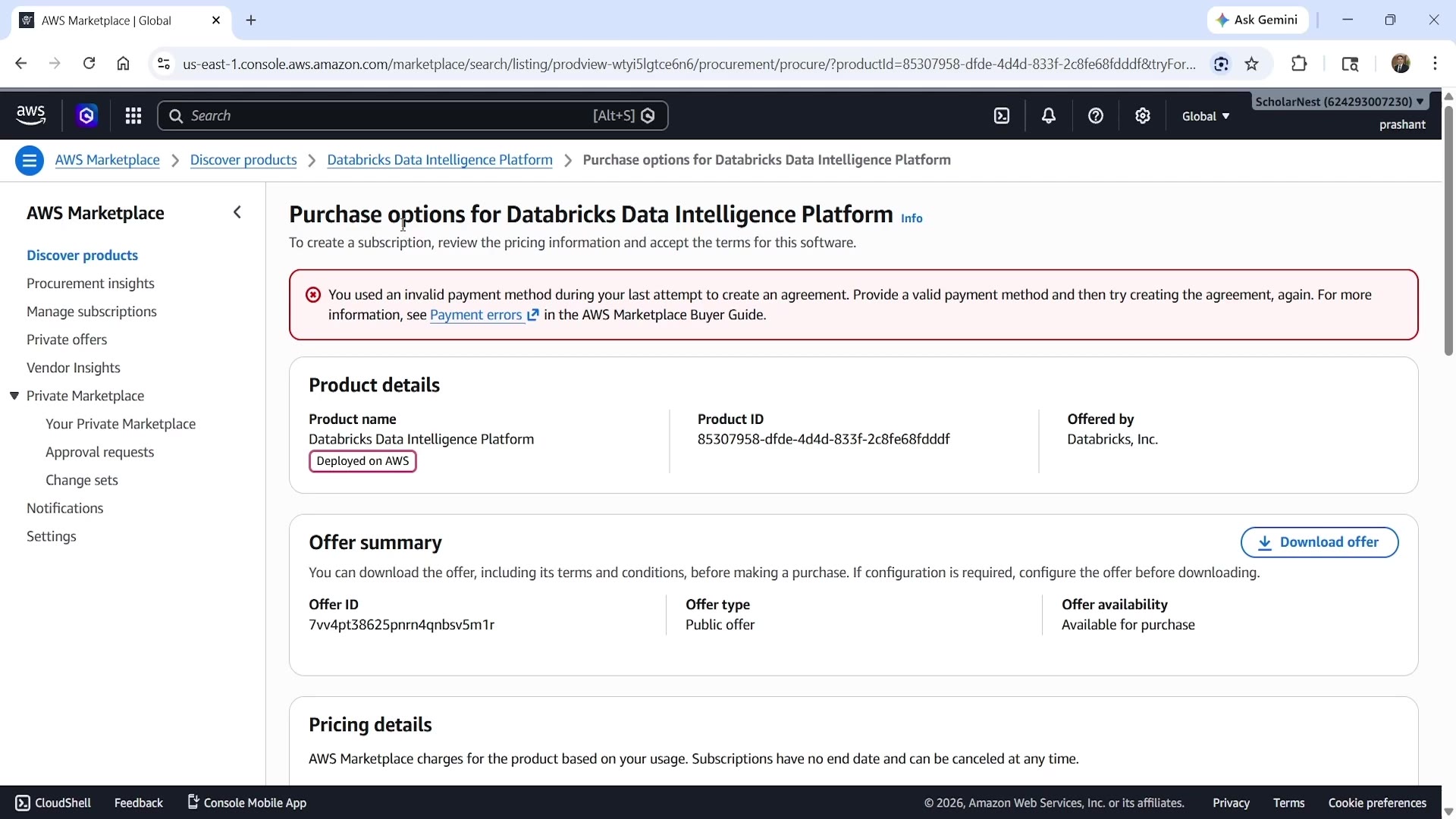 AWS Marketplace invalid payment method error
You'll see an error like this: "You used an invalid payment method during your last attempt to create an agreement." Don't worry — your payment method isn't actually broken. This is a structural issue, not a mistake on your part.
Why This Happens
Here's the underlying reason. If you're in India, your AWS account is served by Amazon Internet Services Private Limited (AISPL) — an Indian entity. Databricks, meanwhile, is a US entity, and Amazon itself (for AWS Marketplace purposes) operates as a US entity too. For Marketplace purchases, Databricks US bills Amazon US — but you're a customer of Amazon's Indian entity. This chain of billing simply isn't supported through UPI, or Indian credit/debit cards, as of now.
This is a known, documented restriction — AWS has published a blog post about it:
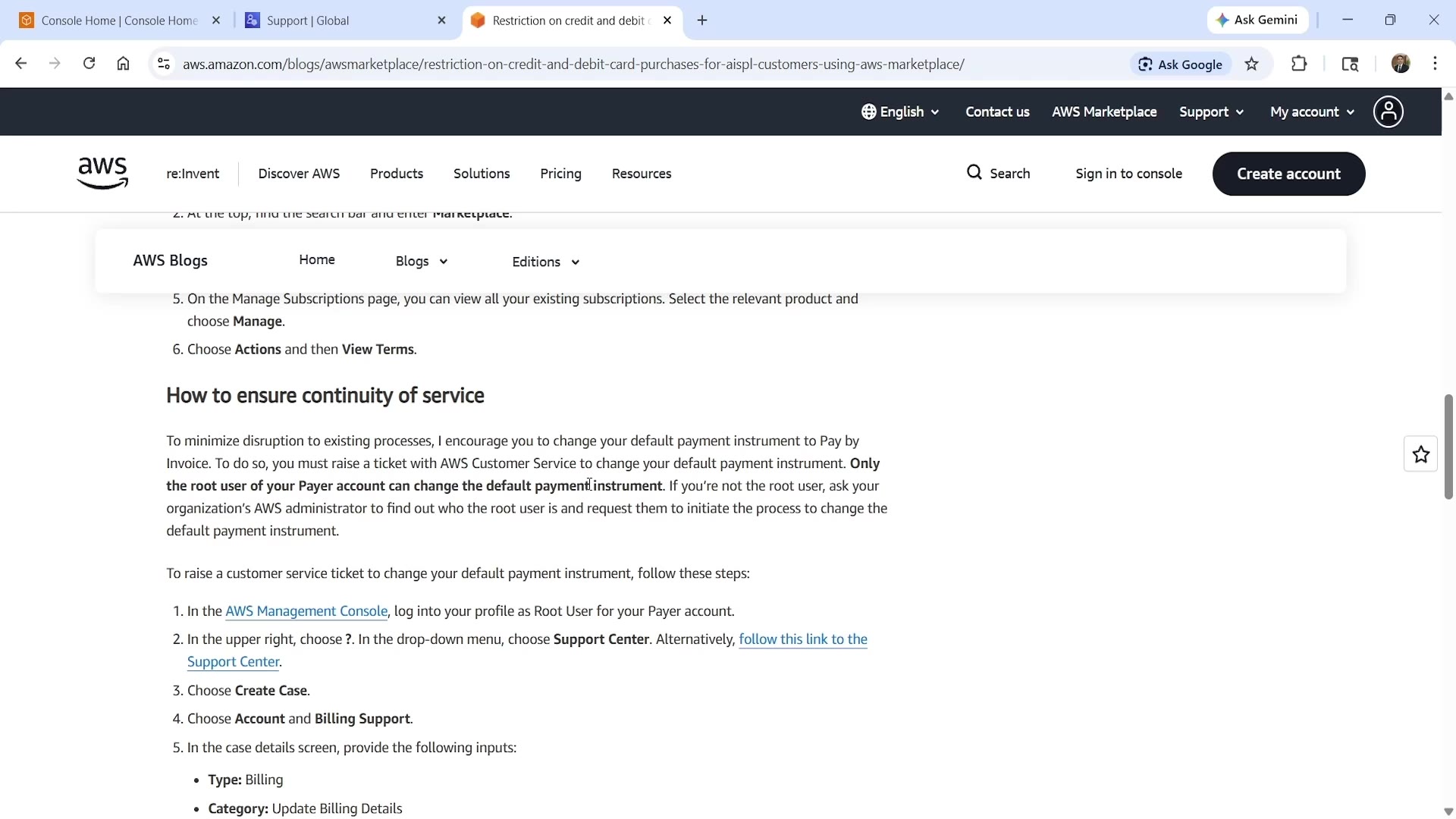 AWS blog: How to ensure continuity of service
(Source: AWS Blog — "Restriction on credit and debit card purchases for AISPL customers using AWS Marketplace")
If you're outside India, this restriction generally doesn't apply — clicking Subscribe should work directly, either for the 14-day trial or pay-as-you-go.
Step 4: The Workaround — Switch to "Pay by Invoice"
There is a solution: request AWS to switch your default payment instrument to "Pay by Invoice." With this method, AWS periodically raises you an invoice, and you settle it via wire transfer/net banking — this bypasses the card/UPI restriction entirely.
Important: only the root user of your AWS account can request this change. So log out of your IAM user session, and sign back in as root.
Raise a Support Ticket
Once logged in as root, go to the Support Center (via the account menu, or the help "?" icon).
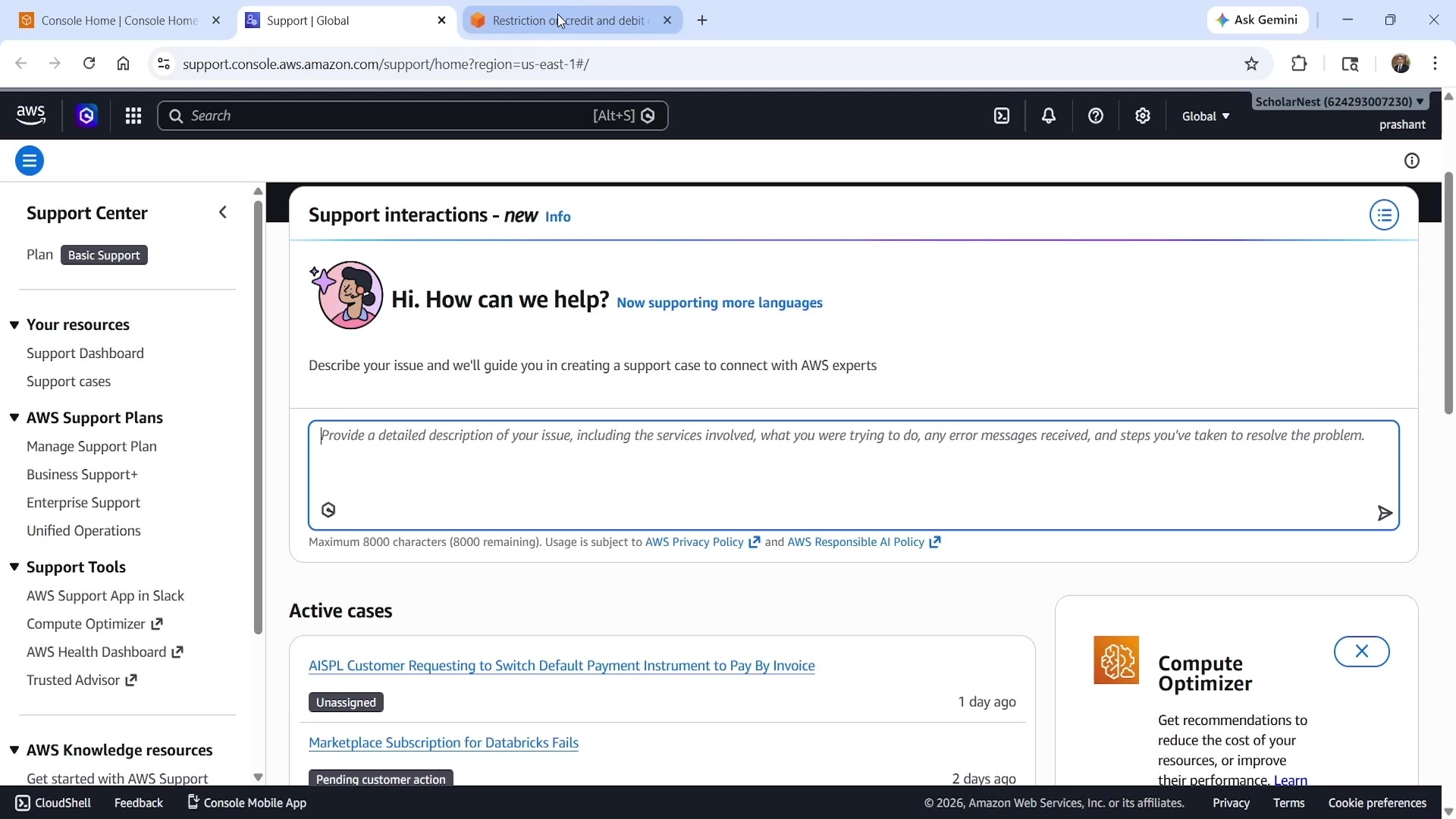 AWS Support Center — active cases
To raise the ticket:
- Choose Create Case.
- Select case type Account and Billing Support.
- In the case details, provide:
- Type: Billing
- Category: Update Billing Details
- Subject: something like "AISPL customer requesting to switch default payment instrument to Pay by Invoice"
- Fill in the required details: company name (or your own name if you don't have a company), contact name for invoice, phone number, email address, and billing address. If you don't have a PO Box, you can enter "NA."
- Submit the ticket.
AWS typically responds within 24 hours — they may ask for a bit more information before making the change. Once satisfied, they'll switch your account to Pay by Invoice, and you'll be able to complete your Marketplace subscription.
A quick note on the process: it may take more than one exchange. In practice, an initial automated response might not resolve things — if that happens, simply reply that the issue is still unresolved, and provide additional context. A human agent will typically follow up and complete the payment method switch.
Step 5: Complete the Subscription
Once your payment method has been switched to Pay by Invoice, go back to AWS Marketplace → Discover products → Databricks Data Intelligence Platform, and click Try for free (or Subscribe) again. This time, it should go through — you'll see a confirmation like: "You have successfully purchased Databricks Data Intelligence Platform."
You can verify this under Manage Subscriptions → Active Subscriptions:
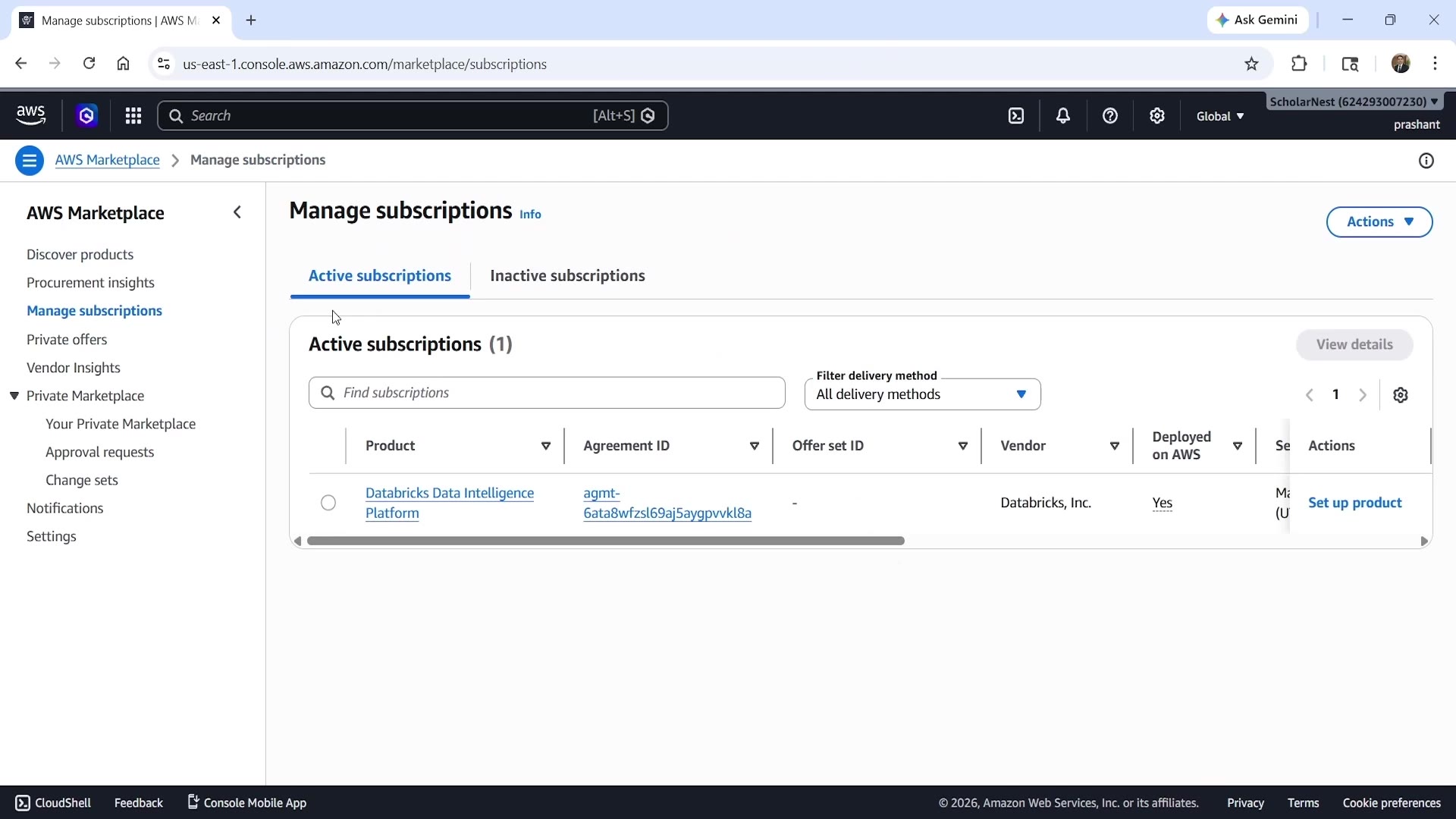 Databricks active subscription
You should see the Databricks Data Intelligence Platform listed, with its Agreement ID and vendor (Databricks, Inc.) confirmed.
What's Next
With the subscription created, the next step is to set up the product — this means creating your account with Databricks itself, and getting access to the Databricks admin console. That's what we'll cover in the next lecture, where we'll set up the Databricks account and create a serverless workspace.
Summary
| Step | What You Do |
|---|---|
| 1–2 | Go to AWS Marketplace, find "Databricks Data Intelligence Platform" |
| 3 | Click Subscribe/Try for free — Indian customers may hit a payment error |
| 4 (if needed) | Log in as root, raise a support ticket to switch to "Pay by Invoice" |
| 5 | Retry the subscription once payment method is fixed — confirm it's active |
See you again. Keep learning, and keep growing!